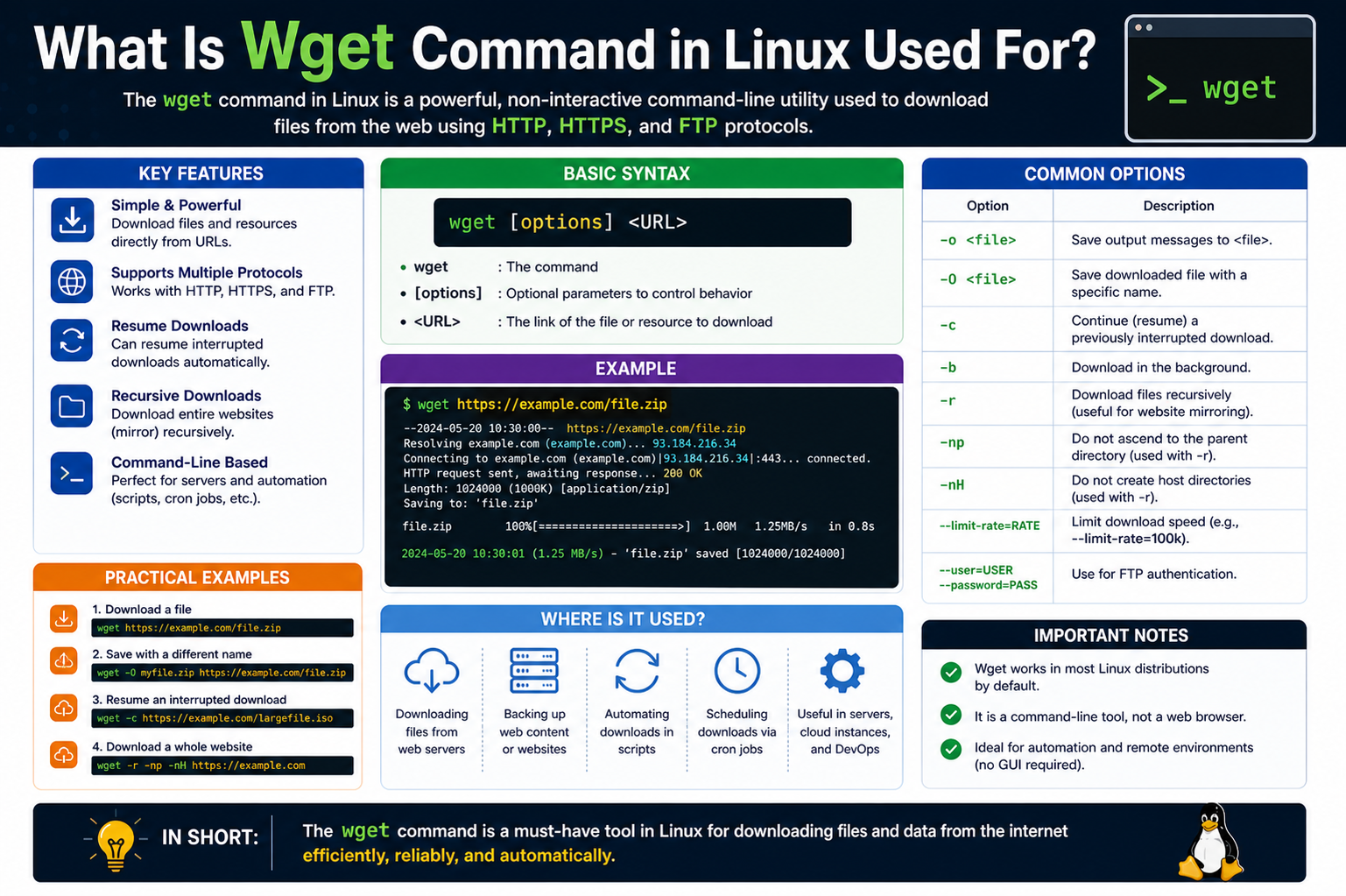
Wget in Linux is a powerful command-line tool designed for downloading files from the internet in a simple and automated way. It works without requiring a graphical interface, which makes it especially useful in environments where only terminal access is available. The main idea behind Wget is to allow users to retrieve data directly from web servers using standard internet communication methods in a reliable and efficient manner. It is widely used in Linux systems because of its simplicity, stability, and ability to work in background operations without constant user supervision.
Meaning and Role of Wget in System Operations
Wget stands for World Wide Web Get, and it is built to fetch content from remote servers. In Linux environments, it plays a key role in system administration, software deployment, data backup, and automated downloading tasks. Unlike traditional downloading methods that depend on browsers, Wget operates entirely through commands. This makes it extremely useful for servers where graphical interfaces are not installed or not needed. Its role extends beyond simple downloading, as it can also manage complex transfer tasks with minimal system resources.
How Wget Works in Linux Environment
Wget operates by connecting to a server and requesting a file using internet protocols. Once the connection is established, it begins transferring data from the remote location to the local system. The process is fully automated, meaning that once a command is executed, no further user interaction is required. It communicates using widely supported internet standards, allowing it to work across different systems and servers. The tool processes requests sequentially and efficiently, ensuring that downloads continue smoothly even in unstable network conditions.
Non-Interactive Nature of Wget
One of the most important characteristics of Wget is its non-interactive behavior. This means it does not require user input once a download has started. It runs in the background and completes tasks independently, making it ideal for automation. Users can set up tasks and allow the system to handle file transfers without monitoring every step. This feature is particularly valuable in server environments where tasks must run continuously without manual intervention.
Protocols Supported by Wget
Wget supports multiple communication methods used for transferring data across networks. These include standard web communication methods and file transfer systems. By supporting different protocols, Wget ensures compatibility with a wide range of servers and online resources. This flexibility allows users to retrieve files from different types of systems without needing separate tools for each protocol. The ability to handle multiple communication standards is one of the reasons Wget is widely adopted in Linux environments.
Importance of Wget in Linux Systems
In Linux operating systems, Wget is considered an essential utility because it simplifies data retrieval tasks. Many Linux distributions include it by default due to its importance in system-level operations. Administrators use it for downloading software packages, updating systems, and managing remote resources. Developers also rely on it for fetching code libraries and project dependencies. Its presence in almost every Linux environment highlights its reliability and usefulness in both basic and advanced computing tasks.
Wget in Server and Remote Environments
Wget is especially valuable in server environments where graphical tools are not available. Servers often operate without desktop interfaces to save system resources, which makes command-line tools necessary. In such cases, Wget becomes a primary method for downloading files, updating systems, and transferring data. It can be used remotely through secure connections, allowing administrators to manage servers from different locations. This capability makes it a key tool in modern cloud and hosting infrastructures.
Background and Development Purpose of Wget
Wget was created to address the need for a reliable downloading tool that could operate without constant supervision. Traditional downloading methods required user interaction, which was not practical for large-scale or automated systems. Wget was designed to solve this problem by enabling uninterrupted file transfers. Over time, it became a standard tool in Linux systems due to its stability and efficiency. Its development focused on simplicity, making it accessible even to users with basic command-line knowledge.
Key Characteristics That Define Wget
Wget is known for several defining characteristics that set it apart from other downloading tools. It is lightweight, meaning it does not consume excessive system resources. It is also highly stable, capable of handling interruptions without losing progress. Another important characteristic is its ability to operate in batch mode, where multiple files can be downloaded in sequence without manual input. These features make it suitable for both small-scale and large-scale operations in Linux systems.
Wget and Command-Line Efficiency
The command-line interface is central to how Wget operates. By using simple text commands, users can control complex downloading tasks with precision. This approach eliminates the need for graphical tools and provides faster execution for experienced users. Command-line efficiency also allows Wget to be integrated into scripts and automated workflows. This means tasks can be scheduled and executed at specific times without manual involvement, improving productivity in system administration and development environments.
Automation Capabilities of Wget
Wget is widely recognized for its automation capabilities. Users can configure it to perform repetitive downloading tasks without supervision. This is especially useful in environments where large amounts of data need to be retrieved regularly. Automation allows systems to stay updated and synchronized without human intervention. By combining Wget with scheduling tools available in Linux, users can create powerful automated workflows that handle downloads at specific intervals or conditions.
Wget in Background Processing
Another important feature of Wget is its ability to run in the background. This means that once a download is started, the user can continue using the system for other tasks without interruption. Background processing is particularly useful when dealing with large files or multiple downloads. It ensures that system performance remains stable while downloads continue in parallel. This makes Wget highly efficient for multitasking environments.
Reliability in Network Conditions
Wget is designed to handle unstable or slow network conditions effectively. If a connection is interrupted during a download, it can resume from where it left off instead of starting over. This feature saves time and bandwidth, especially when dealing with large files. The tool automatically manages network interruptions, making it more reliable than many traditional downloading methods. This resilience is one of the reasons it is trusted in critical system operations.
Wget as a System Administration Tool
System administrators frequently rely on Wget for managing server tasks. It is used to download updates, retrieve configuration files, and manage remote resources. Its simplicity allows administrators to execute complex tasks using minimal commands. Since it does not require a graphical interface, it is ideal for remote server management. Wget’s ability to automate repetitive tasks also reduces manual workload, making system maintenance more efficient.
Use of Wget in Development Environments
Developers also benefit from Wget when working on software projects. It is commonly used to download dependencies, source files, and external resources required for development. Its scripting capability allows developers to integrate it into build systems and deployment pipelines. This ensures that all required resources are automatically fetched during project setup. As a result, development workflows become faster and more organized.
Why Wget Remains Widely Used Today
Despite the availability of modern tools and graphical applications, Wget remains widely used due to its simplicity and reliability. It has stood the test of time because it focuses on core functionality without unnecessary complexity. Users prefer it for tasks that require speed, automation, and stability. Its compatibility with virtually all Linux systems ensures that it continues to be a fundamental tool in both personal and professional computing environments.
Installing Wget in Linux Systems
Wget is commonly available in most Linux distributions, but in some cases it may need to be installed manually depending on the system setup. The installation process is straightforward and typically involves using the system’s package manager. Once installed, Wget becomes accessible directly from the terminal, allowing users to execute download commands instantly. The installation step is important because it ensures that all necessary dependencies are properly configured. After installation, users can verify its availability by checking its version output, which confirms that the tool is ready for use in the system environment.
Basic Structure of Wget Commands
Wget operates using a simple command structure that follows a clear pattern. A basic command usually includes the tool name followed by a URL or target location. This structure allows users to quickly initiate downloads without needing complex syntax. Additional options can be added to modify behavior, such as specifying output locations or enabling special features. The simplicity of this structure is one of the main reasons Wget is widely used in Linux environments, as it allows both beginners and advanced users to perform tasks efficiently.
Downloading Files Using Wget
One of the primary uses of Wget is downloading files from remote servers. When a user provides a valid address, Wget connects to the server and retrieves the file automatically. The downloaded file is saved in the current working directory unless specified otherwise. This process is fully automated, meaning users do not need to interact with the system during the download. Wget is particularly effective for downloading large files because it handles data transfer efficiently and ensures that the process continues smoothly until completion.
Saving Files with Custom Names and Locations
Wget allows users to control where downloaded files are stored and what names they are given. This is useful when managing multiple downloads or organizing files in a structured way. By specifying a custom file path, users can direct downloads to specific folders. Similarly, renaming files during download helps avoid confusion and ensures better file management. This level of control makes Wget more flexible compared to standard downloading methods, especially in environments where file organization is important.
Understanding Download Resumption Feature
One of the most powerful features of Wget is its ability to resume interrupted downloads. If a download stops due to network issues or system shutdown, Wget can continue from where it left off instead of starting over. This saves both time and bandwidth, especially when dealing with large files. The tool automatically checks the existing partial file and continues the transfer seamlessly. This feature makes Wget highly reliable in unstable network environments where interruptions are common.
Bandwidth Control and Speed Limiting
Wget provides the ability to control download speed, which is useful when managing limited internet resources. Users can set a maximum speed limit to ensure that downloads do not consume all available bandwidth. This is especially helpful in shared networks where multiple users are connected. By limiting speed, Wget allows other applications to function smoothly without performance issues. This feature gives users better control over system resources and ensures balanced network usage during downloads.
Background Downloading in Linux Environment
Wget supports background execution, allowing downloads to continue even when the terminal is not actively being used. This means users can start a download and continue working on other tasks without interruption. Background processing is especially useful for long downloads that may take a significant amount of time. It improves productivity by enabling multitasking within the Linux environment. Once initiated, the process runs independently until completion unless manually stopped.
Recursive Downloading Capability
One of the advanced features of Wget is its ability to perform recursive downloads. This means it can download not just a single file but also related files linked within a web structure. This feature is useful for copying or mirroring entire directories of content from a server. It allows users to replicate website structures or download multiple files in a structured manner. Recursive downloading must be used carefully to avoid excessive data transfer or unintended downloads.
Website Mirroring Functionality
Wget can be used to create local copies of websites by downloading all related files and maintaining their structure. This process is known as website mirroring. It is particularly useful for backup purposes or offline access to web content. The tool downloads HTML files, images, and other linked resources while preserving the original structure. This ensures that the offline version behaves similarly to the original website, making it useful for archiving and analysis purposes.
Using Wget in Automated Scripts
Wget can be integrated into scripts to automate repetitive downloading tasks. This allows users to create workflows that execute without manual intervention. By combining Wget with scripting tools, system administrators can schedule downloads, update files, or retrieve data automatically. This automation capability is especially valuable in server environments where tasks must run continuously. It reduces manual effort and improves efficiency by handling routine operations in the background.
Scheduling Downloads with System Tools
Linux systems allow users to schedule tasks, and Wget can be combined with scheduling mechanisms to run downloads at specific times. This is useful for managing bandwidth or performing updates during off-peak hours. Scheduled downloads ensure that tasks are executed automatically without requiring user presence. This feature is widely used in system administration where regular updates or backups need to be performed consistently and efficiently.
Handling Authentication with Wget
Some online resources require authentication before allowing access to files. Wget supports secure login methods by allowing users to provide credentials during download operations. This ensures that protected content can be accessed when necessary. Authentication features make Wget suitable for enterprise environments where secure data access is required. It also supports configuration files for storing credentials securely, reducing the need to manually enter sensitive information each time.
Using Configuration Files for Secure Access
Wget can utilize configuration files to store login credentials and other settings. This allows users to automate authenticated downloads without repeatedly entering sensitive data. These files are structured in a way that Wget can easily read and apply during execution. This method improves both convenience and security by centralizing access information. It is commonly used in environments where frequent access to protected resources is required.
Logging and Output Management in Wget
Wget provides options for managing output logs during download operations. This allows users to track progress, errors, and completion status. Logging is particularly useful in automated systems where monitoring is required without manual observation. By reviewing logs, users can identify issues such as failed downloads or network interruptions. This helps in maintaining system reliability and ensuring that all tasks are executed successfully.
Error Handling and Recovery Mechanisms
Wget is designed to handle errors gracefully during download operations. If a connection fails or a server becomes unavailable, the tool can retry or pause the process. This ensures that downloads are not permanently disrupted by temporary issues. Recovery mechanisms improve reliability and reduce the need for manual intervention. Users can configure retry settings to control how Wget behaves under unstable conditions, making it adaptable to different network environments.
Secure Download Practices in Wget
Security is an important aspect of using Wget, especially when downloading files from external sources. The tool supports secure communication methods that protect data during transfer. Users can also verify certificates and control security settings based on their requirements. Proper configuration ensures that downloads are safe and not exposed to unauthorized access. This makes Wget suitable for environments where data integrity and security are essential.
Optimizing Wget Performance in Linux
Wget can be optimized for better performance by adjusting various settings such as connection behavior, retry limits, and transfer speed. These optimizations help improve efficiency during large-scale downloads. By fine-tuning these options, users can achieve faster and more stable performance. Optimization is especially useful in professional environments where large volumes of data are processed regularly and efficiency is a priority.
Advanced Command Options in Wget
Wget provides a wide range of advanced command options that allow users to control downloads with greater precision. These options modify how the tool behaves during file transfer operations, giving users more control over speed, retries, connections, and output behavior. Advanced options are especially useful for system administrators and developers who need fine-tuned control over automated processes. Instead of simply downloading a file, users can adjust how Wget interacts with servers, how it handles errors, and how it manages system resources during execution.
Using Wget for Batch Downloads
Wget supports batch downloading, where multiple files can be downloaded in a sequence using a single configuration. This is done by providing a list of file locations in a structured format that Wget reads during execution. Batch downloading is highly efficient when dealing with large sets of data, such as software packages, datasets, or media collections. Instead of executing individual commands for each file, users can automate the entire process, saving time and reducing manual effort. This makes Wget highly effective for large-scale data operations.
Input File Handling in Wget
Wget allows users to specify an input file containing multiple download links. This feature enables the tool to process a list of files automatically. Each line in the input file represents a separate download task. This method is commonly used when handling bulk downloads or repetitive tasks. By using an input file, users can manage hundreds of downloads in a structured and organized way. It also reduces the risk of errors that can occur when manually entering multiple commands in the terminal environment.
Using Wget with Quiet and Verbose Modes
Wget offers different output modes that control how much information is displayed during execution. Quiet mode reduces output to minimal information, making it suitable for background or automated tasks. Verbose mode, on the other hand, provides detailed information about each step of the download process. This includes connection status, progress updates, and error messages. These modes help users monitor downloads according to their needs, whether they prefer silent execution or detailed tracking of operations.
Retry Mechanism and Connection Stability
Wget is designed to handle unstable network conditions using retry mechanisms. If a download fails due to a temporary issue, the tool automatically attempts to reconnect and continue the process. Users can also define the number of retry attempts, allowing them to control how persistent Wget should be in recovering failed downloads. This feature is essential in environments where network reliability is inconsistent, ensuring that important downloads are not permanently interrupted by temporary failures.
Timeout Configuration in Wget
Timeout settings in Wget control how long the tool waits for a response from a server before stopping the connection attempt. This helps prevent the system from hanging when a server is slow or unresponsive. By adjusting timeout values, users can balance between patience and efficiency depending on network conditions. Proper timeout configuration ensures smoother performance and prevents unnecessary delays during automated downloading tasks.
Using Wget with Proxy Servers
Wget supports proxy configurations, allowing users to route downloads through intermediary servers. This is useful in network environments where direct internet access is restricted or monitored. By configuring proxy settings, Wget can access external resources securely and efficiently. This feature is widely used in corporate and institutional environments where network policies require controlled access to the internet.
Custom Headers and User-Agent Control
Wget allows users to modify request headers and define custom user-agent strings. This helps simulate different types of clients when communicating with web servers. Some servers respond differently depending on the type of request received, so customizing headers can improve compatibility. User-agent control is also useful when testing web services or accessing resources that require specific client identification.
Cookie Handling in Wget
Wget supports cookie management, which is important when interacting with websites that require session tracking. Cookies allow the tool to maintain session information during downloads, especially when accessing authenticated or dynamic content. This feature enables Wget to interact with websites more effectively by preserving login sessions and user preferences during the download process.
Spider Mode for Website Checking
Wget includes a spider mode that allows users to check whether a website or resource is available without downloading the actual content. This is useful for testing links or verifying server responses. Spider mode acts like a lightweight check that confirms whether files exist or if URLs are reachable. It is commonly used in automated systems that monitor website availability or validate content structures.
Recursive Depth Control in Downloads
When using recursive downloading, Wget allows users to control how deep the tool should go into linked directories. Depth control prevents unnecessary downloading of unwanted content and keeps operations efficient. By setting limits, users can ensure that only relevant sections of a website are downloaded. This is particularly useful when working with large websites where full downloads are not required.
File Filtering and Exclusion Rules
Wget supports filtering rules that allow users to include or exclude specific types of files during download operations. This helps in controlling what content is retrieved from a server. For example, users can choose to download only specific file types or skip unnecessary resources. Filtering improves efficiency and ensures that downloaded data remains relevant to the user’s needs.
Handling Redirects in Wget
Web servers often use redirects to point users to different locations. Wget is capable of following these redirects automatically during downloads. This ensures that files are still retrieved even if their original location has changed. Redirect handling improves reliability and ensures that downloads are completed successfully without manual intervention.
Secure Connection Handling in Wget
Wget supports secure connections to ensure safe data transfer between servers and local systems. It verifies security layers during communication to protect data integrity. Secure connections are especially important when downloading sensitive or private information. Wget ensures that data is transferred safely while maintaining compatibility with secure web standards.
Mirroring Websites with Structure Preservation
Wget can mirror entire websites while preserving their original structure. This means that directories, file paths, and internal links are maintained during the download process. Mirroring is useful for offline browsing, backups, and content analysis. It allows users to replicate an entire website locally while keeping its navigation structure intact for future access.
Using Wget in Automated System Workflows
Wget integrates easily into automated workflows used in Linux systems. It can be combined with scripts and scheduling tools to perform repetitive tasks without manual input. This makes it ideal for environments where consistent data retrieval is required. Automated workflows improve efficiency and reduce human effort in managing routine downloading operations.
Error Logging and Debugging Features
Wget includes debugging and logging features that help users identify issues during download operations. These logs provide detailed information about errors, connection failures, and system responses. Debugging tools are essential for troubleshooting problems and ensuring that downloads function correctly. By analyzing logs, users can adjust configurations and improve system performance.
Rate Limiting for Network Control
Wget allows users to control download speed to prevent excessive network usage. Rate limiting ensures that downloads do not overwhelm available bandwidth, especially in shared environments. This feature helps maintain stable network performance while allowing other applications to function smoothly. It is particularly useful in workplaces or servers with limited bandwidth resources.
Comparing Wget Behavior with Other Tools
Wget is often compared with other command-line tools used for network communication. While some tools focus on interactive data transfer, Wget specializes in automated and recursive downloading. Its strength lies in simplicity, stability, and automation capabilities. Unlike tools that require continuous user interaction, Wget is designed to operate independently once configured, making it ideal for background tasks and system-level operations.
Handling Large-Scale Data Transfers
Wget is capable of handling large-scale data transfers efficiently. It manages memory and network usage carefully to ensure stable performance during long operations. Large downloads are broken into manageable streams, allowing the system to process data without overload. This makes Wget suitable for environments where large datasets or files must be transferred regularly without performance issues.
System Integration and Practical Usage
Wget integrates seamlessly with Linux systems and is commonly used in combination with other tools and scripts. Its flexibility allows it to fit into various workflows, from simple file downloads to complex automated systems. Users rely on it for system maintenance, software updates, and data synchronization tasks. Its ability to operate consistently across different environments makes it a fundamental part of Linux-based workflows.
Troubleshooting Common Wget Errors
Wget is generally reliable, but like any network-based tool, it can encounter issues during operation. One of the most common problems is connection failure, which usually happens due to unstable internet, server downtime, or incorrect URLs. When this occurs, Wget may stop the download or retry depending on its configuration. Another frequent issue involves permission errors, which appear when the user does not have rights to write files in the selected directory. These problems are typically resolved by adjusting file permissions or choosing a different storage location. Understanding these errors helps users maintain smooth download operations without unnecessary interruptions.
Handling SSL and Certificate Issues
Secure connections are important in modern data transfer, but sometimes Wget may face SSL or certificate validation errors. These issues usually occur when a server uses an untrusted or misconfigured security certificate. In such cases, Wget may block the download to protect the system from potentially unsafe connections. Users can adjust certificate handling settings depending on their requirements, but it is always recommended to maintain secure verification whenever possible. Proper handling of SSL ensures safe and trusted communication between systems during file transfers.
Fixing Authentication Problems in Wget
Authentication errors occur when Wget is unable to verify user credentials while accessing protected resources. This may happen due to incorrect usernames, passwords, or expired session data. In some cases, websites require specific authentication methods that must be configured correctly in Wget. Users can resolve these issues by carefully checking login details or adjusting authentication settings. Ensuring correct credential handling is essential when working with private or restricted data sources in automated environments.
Network Configuration and Firewall Challenges
Wget relies on network connectivity, so firewall restrictions or misconfigured network settings can block downloads. Firewalls may prevent Wget from accessing external servers, especially in controlled environments like offices or institutions. Proxy settings may also need to be configured if direct internet access is not available. Proper network configuration ensures that Wget can communicate with remote servers without interruption. Understanding these settings helps users avoid unnecessary connectivity issues during downloads.
Permission Management in Download Locations
File permission issues are common when users attempt to download files into restricted directories. Linux systems require proper access rights for writing files, and Wget follows these rules strictly. If the user does not have permission, the download will fail. This can be resolved by choosing a directory within the user’s home space or adjusting system permissions where appropriate. Managing file permissions correctly ensures that downloads are stored safely and without interruption.
Resolving Broken or Incomplete Downloads
Sometimes downloads may appear incomplete or corrupted due to interruptions or network instability. Wget provides mechanisms to resume such downloads, but in some cases, manual intervention may be required. Checking file integrity and restarting the download process can help resolve these issues. In environments with unstable networks, it is recommended to use features that allow resuming downloads automatically. This reduces the risk of data loss and ensures successful completion of file transfers.
Improving Download Stability in Wget
Stability can be improved by adjusting Wget settings such as retry limits, timeout values, and connection behavior. These adjustments help the tool adapt to different network conditions. For example, increasing retry attempts allows Wget to recover from temporary failures, while adjusting timeout settings prevents unnecessary delays. These optimizations ensure that downloads remain stable even under challenging network environments, making the tool more reliable for long operations.
Debugging Wget with Verbose Output
Wget provides detailed output options that help users understand what is happening during a download process. Verbose output displays connection details, progress updates, and error messages. This information is useful for diagnosing problems and identifying where a failure occurs. By analyzing verbose logs, users can pinpoint issues such as server errors, incorrect URLs, or network interruptions. Debugging tools are essential for improving efficiency and resolving technical issues quickly.
Managing Large File Transfers Efficiently
Handling large file transfers requires careful management of system resources. Wget is designed to handle such tasks efficiently by streaming data in a controlled manner. However, users can further optimize performance by limiting bandwidth usage or scheduling downloads during low-traffic periods. Proper management ensures that large transfers do not overload the system or network. This makes Wget suitable for environments where continuous data movement is required without disrupting other operations.
Optimizing Wget for Server Environments
In server environments, Wget is often used for automated tasks such as updates, backups, and data synchronization. Optimization is important to ensure that these tasks run smoothly without affecting system performance. This can be achieved by controlling download speed, scheduling tasks, and reducing unnecessary output. Servers benefit greatly from Wget’s lightweight nature, as it consumes minimal system resources while performing essential operations in the background.
Security Best Practices for Wget Usage
Security is a critical consideration when using Wget, especially when downloading files from external sources. Users should always ensure that connections are secure and that downloaded content comes from trusted sources. Avoiding unsafe certificates and verifying server authenticity helps protect systems from malicious files. Proper security practices ensure that Wget remains a safe and reliable tool in professional environments where data protection is important.
Using Wget in Automated Backup Systems
Wget is frequently used in automated backup systems where data must be downloaded or synchronized regularly. These systems rely on scheduled tasks that run without manual intervention. Wget ensures that files are retrieved consistently and stored safely for backup purposes. Automation reduces the risk of human error and ensures that critical data is always up to date. This makes Wget an important component in data protection strategies.
Performance Tuning for Better Efficiency
Performance tuning involves adjusting Wget settings to achieve optimal speed and reliability. This may include controlling connection limits, adjusting retry behavior, and managing file output settings. Proper tuning ensures that the tool operates efficiently under different workloads. It also helps balance system performance, especially when multiple downloads are running simultaneously. Efficient configuration improves both speed and stability during operations.
Using Wget for Continuous Data Monitoring
Wget can be used in systems that require continuous monitoring of data sources. By scheduling regular downloads, users can track changes in remote files or websites. This is useful for applications that depend on updated information. Continuous monitoring ensures that systems always have access to the latest data without manual checking. This feature is widely used in automated reporting and data collection systems.
Integrating Wget with Other Linux Tools
Wget works well with other Linux utilities, allowing users to build powerful workflows. It can be combined with scripting tools, scheduling systems, and processing utilities to create automated pipelines. This integration enhances productivity and allows complex tasks to be completed efficiently. By working alongside other tools, Wget becomes part of a larger ecosystem that supports advanced system operations.
Best Practices for Efficient Wget Usage
Using Wget effectively requires following best practices such as organizing downloads, managing bandwidth, and using automation wisely. Proper planning helps prevent system overload and ensures smooth execution of tasks. Users should also monitor logs and adjust settings based on performance needs. Following these practices ensures that Wget remains efficient, reliable, and easy to manage in both personal and professional environments.
Final Thoughts
Wget is a fundamental tool in Linux that simplifies file downloading, automation, and system-level data management. Its ability to handle both simple and complex tasks makes it essential for developers, administrators, and advanced users. With features like resuming downloads, recursive retrieval, and automation support, it provides a complete solution for network-based file operations. Its reliability, flexibility, and efficiency ensure that it remains one of the most widely used command-line tools in Linux environments.