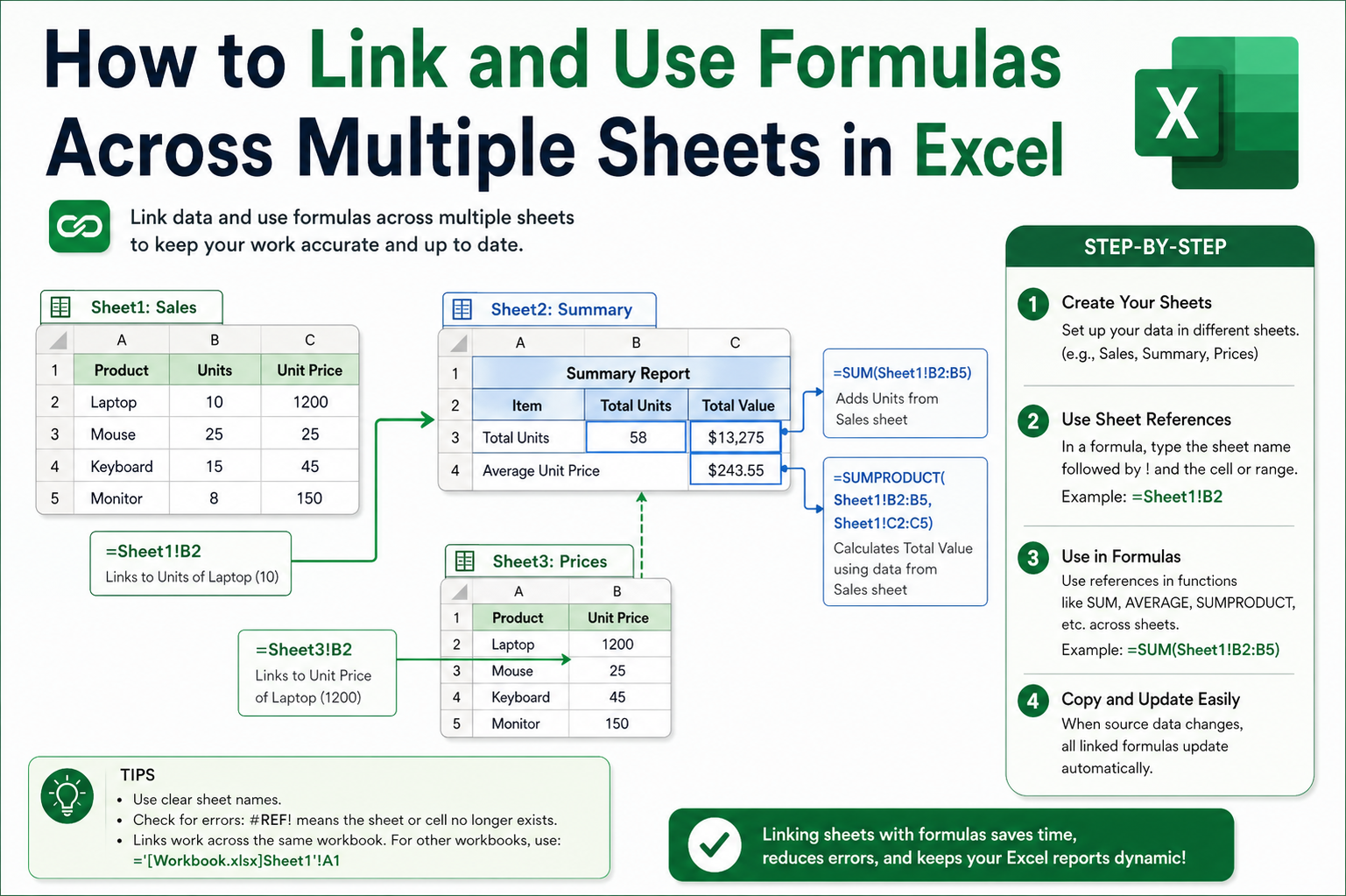
Working with multiple worksheets in Excel is a common scenario, especially when dealing with large datasets, monthly reports, departmental records, or categorized information. Instead of keeping everything on a single sheet, users often organize data across different sheets to maintain clarity and structure. However, this separation introduces the need to connect data between sheets efficiently. Cross-sheet formulas make this possible by allowing you to reference, calculate, and manipulate data stored in different locations within the same workbook.
At its core, a cross-sheet formula is simply a formula that pulls or processes data from another worksheet. Rather than manually copying and pasting values, which can lead to errors and inconsistencies, formulas ensure that your data remains dynamic. Any change made in the source sheet is instantly reflected wherever the formula is used. This automation is one of the key strengths of Excel and is especially valuable when handling repetitive calculations or updating reports regularly.
Excel uses a straightforward syntax to reference data from other sheets. Each reference includes the sheet name, followed by an exclamation mark, and then the cell reference. This structure allows Excel to precisely locate the data you want to use, even if it exists on a completely different sheet. Once you understand this format, building formulas across sheets becomes intuitive and highly efficient.
Why Cross-Sheet Formulas Are Essential
The importance of using formulas across sheets goes beyond convenience. In real-world scenarios, data is rarely stored in a single place. Financial data might be separated by months, employee records might be divided by departments, and sales data might be categorized by regions. Without cross-sheet formulas, combining and analyzing this information would require manual effort, increasing the risk of mistakes.
Cross-sheet formulas allow you to centralize calculations while keeping raw data organized. For example, you might have separate sheets for January, February, and March sales. Instead of combining all data into one sheet, you can create a summary sheet that references each monthly sheet. This approach keeps your workbook clean while still enabling comprehensive analysis.
Another key benefit is scalability. As your data grows, you can simply add more sheets and extend your formulas without restructuring your entire workbook. This flexibility makes cross-sheet formulas an essential skill for anyone who regularly works with Excel, from beginners to advanced users.
Basic Structure of Cross-Sheet References
Understanding the structure of cross-sheet references is the foundation of using formulas effectively. Every reference follows a consistent pattern that Excel recognizes. The simplest form includes the sheet name and the cell reference, separated by an exclamation mark. This tells Excel exactly where to look for the data.
For instance, if you want to reference a value from cell A1 on another sheet, you simply include the sheet name followed by the cell address. This structure can be expanded to include ranges, functions, and complex calculations. Once you grasp this concept, you can apply it to a wide variety of formulas, including arithmetic operations, logical functions, and lookup formulas.
It is also important to understand how Excel handles sheet names. If a sheet name contains spaces or special characters, it must be enclosed in apostrophes. This ensures that Excel interprets the name correctly and avoids errors in your formulas. Paying attention to these small details can save time and prevent frustration when working with more complex workbooks.
Introduction to the Point-and-Click Method
One of the easiest ways to create cross-sheet formulas is by using the point-and-click method. This approach eliminates the need to manually type references, reducing the chances of errors. It is particularly useful for beginners or when working with large datasets where typing references manually could be tedious.
To begin, you select the cell where you want your formula to appear and type an equal sign. This signals to Excel that you are about to create a formula. From there, you can navigate to another sheet and click on the cell you want to reference. Excel automatically inserts the correct reference into your formula, including the sheet name and cell address.
This method is intuitive because it mirrors how you naturally interact with the spreadsheet. Instead of remembering syntax, you simply select the data you need. As you build your formula, each additional cell you click is added to the expression, allowing you to create calculations step by step.
Building Simple Cross-Sheet Calculations
Once you are comfortable with selecting cells across sheets, you can start building simple calculations. For example, you might want to add values from the same cell across multiple sheets. By selecting each cell and inserting the appropriate mathematical operators, you can create a formula that combines data seamlessly.
Excel follows standard mathematical rules when evaluating formulas. This means that operations such as addition, subtraction, multiplication, and division are performed according to the order of operations. Understanding this principle is crucial when building more complex formulas, as it ensures that your calculations produce accurate results.
You can also use parentheses to control the order in which calculations are performed. This is particularly useful when combining multiple operations in a single formula. By grouping certain parts of the formula, you can ensure that Excel processes them in the desired sequence.
Advantages of Using the Point-and-Click Method
The point-and-click method offers several advantages that make it a preferred choice for many users. One of the main benefits is accuracy. Since you are selecting cells directly, there is little risk of referencing the wrong location. This is especially important when working with large workbooks where a small mistake can lead to significant errors.
Another advantage is speed. Instead of typing long references, you can quickly navigate between sheets and select the necessary cells. This makes the process more efficient and reduces the time required to build formulas. Additionally, this method helps you visualize the relationships between different sheets, making it easier to understand how your data is connected.
For those who are new to Excel, the point-and-click method also serves as a learning tool. By observing how Excel constructs formulas automatically, you can gradually become familiar with the syntax and structure of cross-sheet references. Over time, this understanding allows you to transition to manual formula creation with confidence.
Transitioning to Manual Formula Entry
While the point-and-click method is convenient, there are situations where manually typing formulas is more efficient. This is particularly true when dealing with repetitive patterns or when you need to create formulas quickly without navigating between sheets.
Manual entry requires a solid understanding of the syntax used in cross-sheet references. By typing the sheet name, followed by an exclamation mark and the cell reference, you can create formulas directly in the formula bar. This approach gives you greater control and flexibility, especially when working with complex calculations.
As you gain experience, you will find that manual entry becomes faster and more intuitive. It also allows you to customize formulas more easily, enabling you to adapt them to different scenarios without relying on step-by-step selection.
Combining Multiple Sheet References in a Single Formula
One of the most powerful aspects of cross-sheet formulas is the ability to combine multiple references in a single calculation. This allows you to aggregate data from different sheets and perform comprehensive analysis without consolidating everything into one location.
For example, you can create formulas that add, subtract, or multiply values from different sheets. By combining these references with functions, you can perform more advanced calculations such as summing ranges, calculating averages, or applying conditional logic.
This capability is particularly useful in reporting and analysis. Instead of manually gathering data from multiple sheets, you can create a single formula that does the work for you. This not only saves time but also ensures consistency and accuracy in your results.
Understanding the Role of Functions in Cross-Sheet Formulas
Functions play a crucial role in enhancing the power of cross-sheet formulas. By combining functions with cross-sheet references, you can perform complex calculations with minimal effort. Functions such as SUM, AVERAGE, and IF can be used to process data from multiple sheets, providing valuable insights and simplifying your workflow.
When using functions, the same referencing rules apply. You include the sheet name and cell reference within the function’s arguments, allowing Excel to locate the data correctly. This integration of functions and cross-sheet references opens up a wide range of possibilities, from basic calculations to advanced data analysis.
As you become more familiar with functions, you will discover new ways to use them in combination with cross-sheet formulas. This knowledge enables you to create dynamic and efficient spreadsheets that can handle complex tasks with ease.
Common Challenges and How to Overcome Them
Working with cross-sheet formulas can sometimes present challenges, especially for beginners. One common issue is referencing the wrong sheet or cell, which can lead to incorrect results. To avoid this, it is important to double-check your references and ensure that they point to the correct location.
Another challenge is dealing with sheet names that contain spaces or special characters. In such cases, forgetting to use apostrophes can cause errors in your formulas. Being mindful of these details helps prevent unnecessary complications and ensures that your formulas work as intended.
Errors can also occur when sheets are renamed or deleted. Since cross-sheet formulas rely on specific references, any changes to the structure of your workbook can affect their functionality. To minimize this risk, it is important to maintain consistency in your sheet names and update your formulas as needed.
Developing Confidence with Cross-Sheet Formulas
Mastering cross-sheet formulas requires practice and experimentation. By working with different types of data and exploring various scenarios, you can build confidence and improve your skills. Start with simple formulas and gradually move on to more complex calculations as you become more comfortable with the concepts.
It is also helpful to review and analyze existing formulas to understand how they work. By breaking down each component and examining how it contributes to the overall calculation, you can gain a deeper understanding of cross-sheet references and their applications.
With time and experience, using formulas across sheets becomes second nature. This skill not only enhances your efficiency but also empowers you to handle more advanced tasks in Excel, making you more productive and capable in your work.
Writing Cross-Sheet Formulas Manually with Precision
After becoming comfortable with selecting cells across sheets, the next step is learning how to write cross-sheet formulas manually. This approach gives you greater control, especially when working with complex spreadsheets or when speed is important. Instead of navigating between sheets repeatedly, you can directly type the references into the formula bar using the correct syntax.
Manual entry relies on a clear understanding of how Excel identifies data across worksheets. Each reference begins with the sheet name, followed by an exclamation mark, and then the specific cell or range. This structure allows Excel to locate the exact data point without ambiguity. Once you understand this pattern, you can quickly build formulas that connect multiple sheets without relying on visual selection.
This method is particularly useful when working with repetitive calculations. For example, if you are referencing the same cell across many sheets, typing the pattern manually can be significantly faster than clicking through each sheet. It also reduces interruptions in your workflow, allowing you to focus on building efficient formulas.
Referencing Cells with Different Sheet Names
In many workbooks, sheet names are not always simple or uniform. They may include spaces, numbers, or descriptive labels that make them easier to understand but slightly more complex to reference. When a sheet name contains spaces, Excel requires you to enclose it in apostrophes to ensure the reference is interpreted correctly.
This small detail is essential for avoiding errors. Without apostrophes, Excel may misinterpret the sheet name as separate elements, leading to invalid formulas. By consistently applying this rule, you can ensure that your formulas remain accurate regardless of how your sheets are named.
It is also important to maintain consistency in naming conventions. Using clear and predictable sheet names makes it easier to write and read formulas. This becomes especially valuable when sharing workbooks with others, as it improves readability and reduces confusion.
Using Ranges Across Multiple Sheets
While referencing individual cells is useful, many tasks require working with ranges of data. Excel allows you to reference entire ranges across sheets using the same basic syntax. By specifying a starting and ending cell, you can include multiple values in your calculations without listing each one individually.
This is particularly helpful when performing operations like summing or averaging data. Instead of referencing each cell separately, you can define a range that covers all relevant data points. This not only simplifies your formulas but also makes them easier to maintain and update.
When working with ranges, it is important to ensure that the structure of your data is consistent across sheets. For example, if you are summing a specific range from multiple sheets, each sheet should have the same layout. This consistency ensures that your formulas produce accurate and meaningful results.
Applying Functions Across Sheets
Functions become even more powerful when combined with cross-sheet references. By integrating functions with data from different sheets, you can perform complex calculations with minimal effort. Functions such as SUM allow you to combine values from multiple sheets into a single result, making it easier to analyze large datasets.
One of the most efficient techniques involves referencing the same cell or range across consecutive sheets. This approach is particularly useful when working with time-based data, such as monthly reports. By defining a range of sheets, you can apply a function that processes data across all of them simultaneously.
This method reduces the need for repetitive references and keeps your formulas concise. It also makes it easier to expand your calculations as new sheets are added, ensuring that your formulas remain scalable and adaptable.
Handling Mathematical Operations Across Sheets
Beyond functions, you can also perform direct mathematical operations using cross-sheet references. This includes addition, subtraction, multiplication, and division. By combining references from different sheets, you can create formulas that perform detailed calculations without consolidating data into a single location.
Understanding how Excel evaluates these operations is crucial. The application follows standard mathematical rules, meaning that multiplication and division are performed before addition and subtraction unless parentheses are used. By structuring your formulas correctly, you can control the order of operations and ensure accurate results.
Parentheses play a key role in organizing complex formulas. By grouping certain parts of the calculation, you can guide Excel in processing the formula step by step. This is especially useful when combining multiple operations across different sheets, as it helps maintain clarity and precision.
Using Lookup Functions Across Sheets
Lookup functions are among the most powerful tools in Excel, and they can be effectively used across sheets. These functions allow you to search for specific values in one sheet and return corresponding data from another. This is particularly useful when working with large datasets or when linking related information stored in different locations.
When using lookup functions across sheets, it is important to define the table range correctly. This includes specifying the sheet name along with the range of cells that contain the data. By doing so, you ensure that the function can locate and retrieve the correct information.
Accuracy is critical when working with lookups. Even a small mistake in the reference can lead to incorrect results. Taking the time to verify your formulas and ensure that all references are correct can save significant effort in the long run.
Managing Errors in Cross-Sheet Formulas
Errors are a natural part of working with formulas, especially when dealing with multiple sheets. Common issues include invalid references, missing data, or changes to sheet names. These errors can disrupt your calculations and make it difficult to interpret your results.
To manage errors effectively, Excel provides functions that allow you to handle them gracefully. Instead of displaying error messages, you can define alternative outputs that make your formulas more user-friendly. This is particularly useful in reports, where clear and consistent presentation is important.
Preventing errors is just as important as handling them. By carefully structuring your formulas and maintaining consistency in your workbook, you can reduce the likelihood of issues arising. Regularly reviewing your formulas and testing them with different scenarios can also help identify potential problems early.
Improving Efficiency with Consistent Formula Patterns
Efficiency is a key goal when working with Excel, and cross-sheet formulas play a significant role in achieving it. By developing consistent patterns in your formulas, you can streamline your workflow and reduce the time required to perform calculations.
For example, if you frequently reference the same type of data across multiple sheets, you can create a standard formula structure that can be easily adapted to different scenarios. This approach not only saves time but also improves accuracy by reducing the chances of errors.
Consistency also makes your work easier to understand. When formulas follow a predictable pattern, it becomes easier to review and modify them as needed. This is particularly important in collaborative environments, where multiple users may be working on the same workbook.
Adapting Formulas for Expanding Data
As your data grows, your formulas need to adapt accordingly. Cross-sheet formulas are inherently flexible, allowing you to extend your calculations without significant changes. By designing your formulas with scalability in mind, you can ensure that they remain effective as your workbook evolves.
One way to achieve this is by using ranges and functions that can accommodate additional data. Instead of referencing fixed cells, you can define ranges that expand as new data is added. This approach minimizes the need for manual updates and keeps your formulas dynamic.
Planning ahead is essential when working with expanding data. By anticipating future needs and structuring your workbook accordingly, you can create formulas that are both robust and adaptable. This foresight can save time and effort in the long run, especially when dealing with large and complex datasets.
Enhancing Readability and Organization
Clear and well-organized formulas are easier to understand and maintain. When working with cross-sheet references, readability becomes even more important, as formulas can quickly become complex. By using consistent naming conventions and structuring your formulas logically, you can improve clarity and reduce confusion.
Breaking down complex calculations into smaller components can also enhance readability. Instead of creating a single long formula, you can use intermediate calculations to simplify the process. This makes it easier to identify errors and understand how each part of the formula contributes to the final result.
Documentation is another valuable practice. Adding notes or comments to your workbook can help explain the purpose of your formulas and provide context for future users. This is particularly useful in collaborative settings, where clear communication is essential.
Strengthening Your Workflow with Practice
Developing proficiency in cross-sheet formulas requires consistent practice. By working on different types of projects and experimenting with various techniques, you can deepen your understanding and improve your skills. Start with simple tasks and gradually take on more complex challenges as your confidence grows.
Reviewing your work is an important part of the learning process. By analyzing your formulas and identifying areas for improvement, you can refine your approach and develop more efficient methods. Over time, this iterative process leads to greater mastery and a more streamlined workflow.
As you continue to practice, you will discover new ways to use cross-sheet formulas to solve problems and enhance your productivity. This ongoing learning process is what makes Excel such a powerful and versatile tool for managing and analyzing data.
Working with Consecutive Sheets in a Single Formula
As your Excel skills grow, you will often encounter situations where multiple sheets follow a consistent structure, such as monthly reports, weekly logs, or departmental summaries. Instead of referencing each sheet individually, Excel allows you to work with consecutive sheets as a group. This technique simplifies formulas and reduces the effort required to manage large workbooks.
When sheets are arranged in a sequence, you can define a range that includes all of them. This is especially useful when applying functions that aggregate data, such as calculating totals or averages. By referencing a continuous block of sheets, you avoid the need to repeatedly type or select each one, making your formulas cleaner and easier to manage.
This approach is particularly effective in time-based data models. For example, if each sheet represents a different month, grouping them allows you to perform calculations across an entire period without restructuring your data. It also ensures consistency, as the same formula logic is applied uniformly across all included sheets.
Using Three-Dimensional Formulas for Advanced Calculations
A powerful concept in Excel is the use of three-dimensional formulas. These formulas extend beyond rows and columns to include multiple sheets, effectively adding a third dimension to your calculations. This capability allows you to analyze data across entire sections of your workbook with a single formula.
Three-dimensional formulas are especially useful when working with repeated data structures. For instance, if each sheet contains the same layout, you can apply a single function across all sheets to produce a consolidated result. This eliminates redundancy and ensures that your calculations remain consistent throughout the workbook.
Understanding how to structure these formulas is key to unlocking their potential. By defining the starting and ending sheets in your reference, you create a continuous range that Excel can process efficiently. This method not only saves time but also enhances the scalability of your workbook.
Integrating Logical Functions Across Sheets
Logical functions add another layer of capability to cross-sheet formulas. These functions allow you to evaluate conditions and return results based on specific criteria. When combined with references from different sheets, they enable dynamic decision-making within your workbook.
For example, you might want to compare values from multiple sheets and determine whether certain conditions are met. Logical functions make it possible to perform these checks automatically, providing immediate feedback and reducing the need for manual analysis.
This integration is particularly useful in scenarios where data must be validated or categorized. By applying logical conditions across sheets, you can ensure consistency and accuracy in your results. It also allows you to create more interactive and responsive spreadsheets that adapt to changing data.
Using Cross-Sheet References in Conditional Calculations
Conditional calculations are essential for analyzing data based on specific rules. When these calculations involve multiple sheets, cross-sheet references become invaluable. By combining conditional functions with references from different sheets, you can perform targeted analysis without consolidating your data.
This approach is useful in a wide range of applications, from financial modeling to performance tracking. For instance, you might want to calculate totals only if certain conditions are met across different sheets. By structuring your formulas carefully, you can achieve this level of precision and control.
The key to success with conditional calculations is clarity. Ensuring that your conditions are well-defined and that your references are accurate helps prevent errors and ensures reliable results. Taking the time to test your formulas with different scenarios can also improve their robustness.
Building Dynamic Reports Using Cross-Sheet Formulas
One of the most practical applications of cross-sheet formulas is in building dynamic reports. These reports pull data from multiple sources within a workbook and present it in a unified format. By using formulas to link data across sheets, you can create reports that update automatically as new information is added.
This capability is particularly valuable in professional environments where timely and accurate reporting is essential. Instead of manually updating figures, you can rely on formulas to handle the calculations, ensuring that your reports always reflect the latest data.
Dynamic reports also improve efficiency by reducing repetitive tasks. Once the formulas are set up, they continue to work in the background, allowing you to focus on analysis and decision-making. This makes cross-sheet formulas a powerful tool for enhancing productivity.
Combining Cross-Sheet References with Lookup Techniques
Lookup techniques become even more effective when applied across multiple sheets. By combining lookup functions with cross-sheet references, you can retrieve specific information from different parts of your workbook with ease. This is especially useful when dealing with large datasets that are organized across multiple sheets.
For example, you might need to find a particular value in one sheet and return related information from another. By structuring your lookup formulas correctly, you can establish these connections and streamline your data retrieval process.
Accuracy and consistency are critical when using lookup techniques. Ensuring that your data is well-organized and that your references are correct helps prevent errors and improves the reliability of your results. With practice, you can use these techniques to handle complex data relationships efficiently.
Understanding Dependencies Between Sheets
When using formulas across sheets, it is important to understand how dependencies are created. A dependency exists when one cell relies on data from another location. In cross-sheet formulas, these dependencies extend across different worksheets, linking them together.
While dependencies enable powerful calculations, they also require careful management. Changes in one sheet can affect results in another, making it important to track how data flows through your workbook. By maintaining a clear structure and documenting your formulas, you can manage these dependencies effectively.
Understanding dependencies also helps with troubleshooting. When an error occurs, knowing which cells and sheets are connected allows you to identify the source of the problem more quickly. This insight is valuable for maintaining the integrity of your data and ensuring accurate results.
Optimizing Performance in Large Workbooks
As your workbook grows in size and complexity, performance can become a concern. Cross-sheet formulas, especially when used extensively, can impact calculation speed. Optimizing your formulas is essential for maintaining efficiency and ensuring that your workbook remains responsive.
One way to improve performance is by minimizing unnecessary calculations. Avoid using overly complex formulas when simpler alternatives are available. Additionally, ensure that your references are precise and do not include unnecessary ranges or cells.
Another important consideration is the organization of your workbook. Keeping related data grouped together and maintaining a logical structure can improve calculation efficiency. By designing your workbook with performance in mind, you can create a more efficient and user-friendly experience.
Maintaining Accuracy When Updating Sheets
Workbooks are rarely static, and changes to sheet names, structures, or data can affect cross-sheet formulas. Maintaining accuracy requires careful attention to these changes and a proactive approach to updating your formulas.
When a sheet is renamed, Excel typically updates references automatically. However, it is still important to verify that all formulas are functioning correctly. Deleting sheets can also lead to errors, as references to those sheets become invalid. Regularly reviewing your workbook helps identify and resolve these issues.
Consistency in structure is another key factor. Ensuring that all sheets follow the same layout makes it easier to apply and maintain cross-sheet formulas. This consistency reduces the risk of errors and simplifies the process of updating your workbook.
Improving Collaboration with Clear Formula Design
In collaborative environments, multiple users may work on the same workbook. Clear and well-structured formulas are essential for ensuring that everyone can understand and use the data effectively. Cross-sheet formulas, in particular, require careful design to avoid confusion.
Using descriptive sheet names, consistent formatting, and logical formula structures improves readability. This makes it easier for others to follow your work and reduces the likelihood of errors. Providing explanations or notes can also help clarify complex formulas.
Collaboration also benefits from standardization. Establishing guidelines for naming conventions, data organization, and formula design ensures consistency across the workbook. This shared approach enhances efficiency and makes it easier to manage large projects.
Expanding Your Skillset with Advanced Techniques
As you become more comfortable with cross-sheet formulas, you can begin exploring advanced techniques that further enhance your capabilities. These may include combining multiple functions, creating nested formulas, or integrating cross-sheet references with other Excel features.
Advanced techniques allow you to handle more complex scenarios and extract deeper insights from your data. They also provide greater flexibility, enabling you to adapt your formulas to a wide range of applications.
Continuous learning is key to mastering Excel. By experimenting with new methods and challenging yourself with more complex tasks, you can expand your skillset and become more proficient in using cross-sheet formulas. This growth not only improves your efficiency but also opens up new possibilities for data analysis and management.
Handling Errors and Ensuring Formula Reliability
As your use of cross-sheet formulas becomes more advanced, managing errors becomes increasingly important. Errors can arise for many reasons, including missing data, incorrect references, renamed sheets, or deleted worksheets. When formulas rely on multiple sheets, even a small issue in one location can affect the entire calculation. Understanding how to handle these situations ensures that your work remains accurate and dependable.
One effective way to manage errors is by incorporating error-handling functions into your formulas. These functions allow you to control what happens when something goes wrong, replacing error messages with meaningful outputs. Instead of displaying confusing results, your spreadsheet can present clear and user-friendly information. This is particularly valuable in professional reports, where clarity and presentation matter.
Preventing errors is just as important as fixing them. Carefully reviewing your formulas, double-checking references, and maintaining consistency across sheets can significantly reduce the likelihood of issues. Regular testing with different data scenarios also helps identify potential problems early, allowing you to address them before they impact your results.
Using Named Ranges for Better Structure
Named ranges are a powerful feature that can improve the clarity and usability of cross-sheet formulas. Instead of referencing cells by their coordinates, you can assign meaningful names to specific ranges. These names can then be used in formulas, making them easier to read and understand.
When working across multiple sheets, named ranges provide an additional layer of organization. They allow you to create formulas that are less dependent on specific cell addresses, making your workbook more flexible and easier to maintain. This is especially useful in large projects where formulas can become complex and difficult to interpret.
Using named ranges also reduces the risk of errors. By replacing traditional references with descriptive names, you can minimize confusion and ensure that your formulas are pointing to the correct data. This approach enhances both accuracy and readability, making it easier to manage your workbook over time.
Leveraging Consolidation Techniques
In situations where data is spread across multiple sheets, consolidation techniques can simplify analysis. Instead of writing individual formulas for each sheet, you can use built-in features to combine data into a single summary. This approach is particularly useful when dealing with large volumes of information that follow a consistent structure.
Consolidation allows you to gather data from different sheets and perform calculations in one place. While this method may not always provide the same level of flexibility as manual formulas, it offers a quick and efficient way to summarize information. It is especially helpful when you need to create high-level overviews without focusing on detailed calculations.
Understanding when to use consolidation versus cross-sheet formulas is important. Each method has its strengths, and choosing the right one depends on your specific needs. By combining these techniques, you can create a more versatile and efficient workflow.
Enhancing Analysis with Pivot Tables
Another powerful tool for working with data across multiple sheets is the use of pivot tables. Pivot tables allow you to organize, summarize, and analyze large datasets with ease. When combined with cross-sheet data, they provide a dynamic way to explore information and uncover insights.
Pivot tables are particularly effective for identifying trends, comparing values, and generating summaries. They can handle complex data structures and present results in a clear and interactive format. This makes them an excellent complement to cross-sheet formulas, especially when dealing with large or complex datasets.
Although pivot tables may require some initial learning, their benefits are substantial. Once you understand how to use them, they can significantly enhance your ability to analyze and present data. Integrating pivot tables into your workflow adds another dimension to your Excel skills and improves overall efficiency.
Maintaining Consistency Across Worksheets
Consistency is a key factor in successfully using formulas across sheets. When all worksheets follow a similar structure, it becomes much easier to create and maintain formulas. This includes using consistent column layouts, naming conventions, and data formats.
A consistent structure ensures that your formulas work correctly across all sheets. It also simplifies updates, as changes can be applied uniformly without requiring extensive modifications. This is particularly important in large workbooks where maintaining accuracy can be challenging.
Taking the time to establish and maintain consistency pays off in the long run. It reduces errors, improves efficiency, and makes your workbook easier to understand. This approach is especially valuable in collaborative environments, where multiple users rely on the same data.
Documenting and Auditing Your Formulas
As formulas become more complex, documentation becomes increasingly important. Keeping track of how your formulas work and what they are intended to do helps ensure that your workbook remains manageable. This is particularly useful when revisiting a project after some time or when sharing it with others.
Auditing tools can also help you review and verify your formulas. These tools allow you to trace dependencies, identify errors, and understand how data flows through your workbook. By using these features, you can maintain greater control over your calculations and ensure their accuracy.
Clear documentation and regular auditing contribute to a more reliable and professional workbook. They help prevent misunderstandings and make it easier to maintain and update your formulas over time.
Balancing Simplicity and Complexity in Formulas
While Excel allows for highly complex formulas, it is important to strike a balance between functionality and simplicity. Overly complicated formulas can be difficult to understand, maintain, and troubleshoot. Whenever possible, aim to simplify your calculations without sacrificing accuracy.
Breaking complex formulas into smaller components can improve clarity. By using intermediate steps, you can make your calculations easier to follow and reduce the risk of errors. This approach also makes it easier to update and modify your formulas as needed.
Simplicity does not mean limiting your capabilities. Instead, it involves using Excel’s features effectively to achieve your goals in a clear and efficient manner. By focusing on clarity and organization, you can create formulas that are both powerful and easy to manage.
Adapting to Changing Data and Requirements
Data is constantly evolving, and your formulas need to adapt accordingly. Whether you are adding new sheets, updating existing data, or changing your analysis requirements, flexibility is essential. Cross-sheet formulas provide the adaptability needed to handle these changes without extensive rework.
Designing your formulas with future changes in mind can save time and effort. This includes using flexible references, consistent structures, and scalable techniques. By planning ahead, you can ensure that your workbook remains effective even as your data grows and evolves.
Regularly reviewing and updating your formulas helps maintain their relevance and accuracy. This proactive approach ensures that your work continues to meet your needs and supports effective decision-making.
Best Practices for Long-Term Efficiency
Developing best practices is key to mastering cross-sheet formulas and maintaining efficiency over time. These practices include organizing your data logically, using clear naming conventions, and regularly reviewing your formulas for accuracy.
Another important practice is testing your formulas with different scenarios. This helps ensure that they work correctly under various conditions and reduces the risk of unexpected errors. Consistent testing also builds confidence in your calculations and improves the reliability of your results.
Collaboration and knowledge sharing can further enhance your skills. Learning from others and exploring new techniques allows you to expand your understanding and discover more efficient ways to work with Excel. By continuously refining your approach, you can achieve greater productivity and effectiveness.
Final Thoughts
Using formulas across sheets transforms Excel from a simple data-entry tool into a powerful platform for analysis and decision-making. By connecting data from multiple worksheets, you can create dynamic calculations, automate processes, and generate meaningful insights with ease.
From basic references to advanced techniques, cross-sheet formulas provide the flexibility needed to handle complex data structures. As you continue to practice and refine your skills, you will discover new ways to leverage these capabilities and enhance your workflow.
The key to success lies in understanding the fundamentals, maintaining consistency, and continuously improving your approach. With these principles in mind, you can confidently work across multiple sheets and unlock the full potential of Excel.