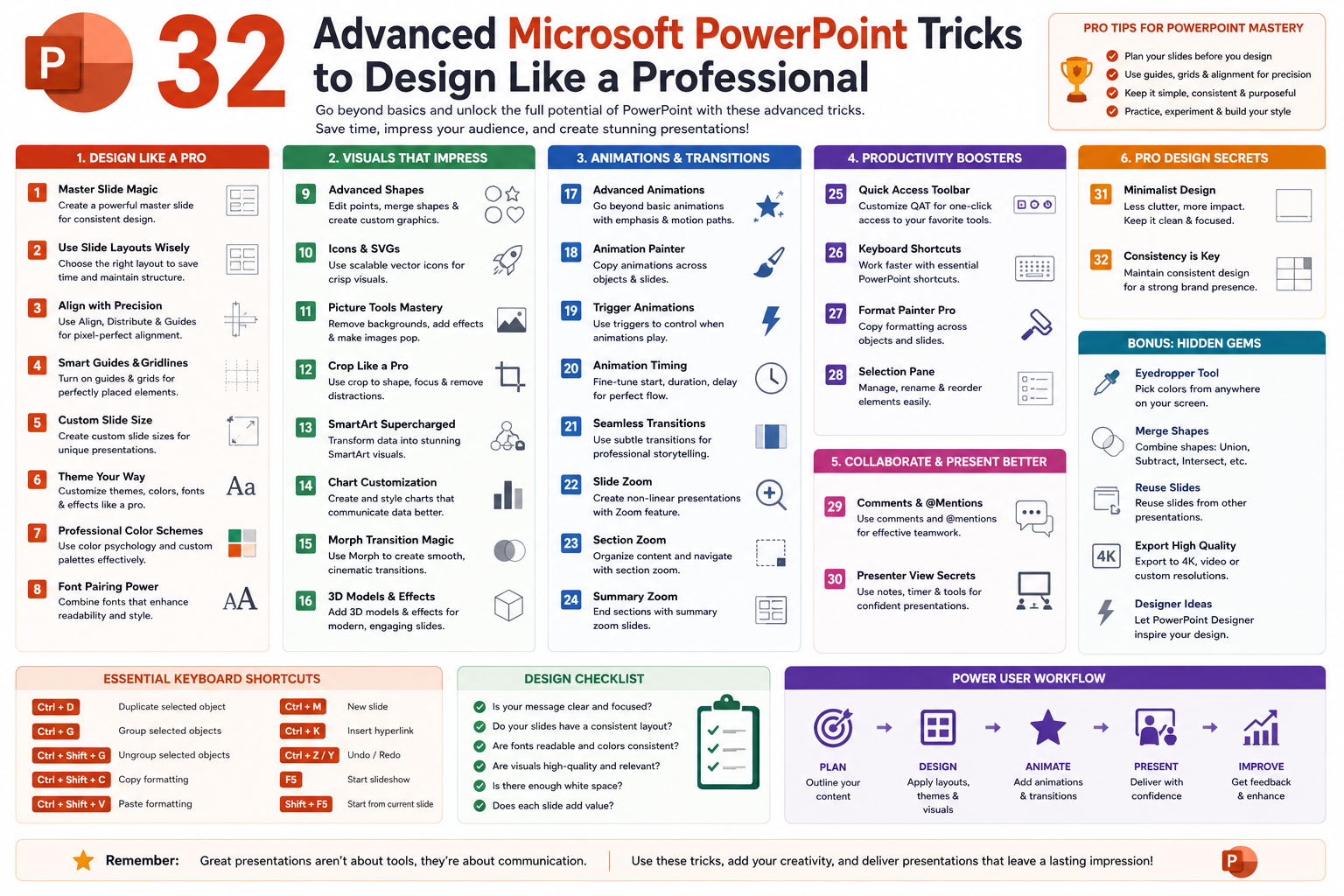
Microsoft PowerPoint has evolved far beyond its original purpose as a simple slide creation tool. Today, it serves as a complete visual communication platform used across industries for business presentations, academic lectures, training sessions, project reports, and even creative storytelling. The strength of PowerPoint lies in its ability to transform complex ideas into clear, visually structured content that audiences can easily understand and remember.
At its core, effective presentation design is not about adding more slides or using flashy animations. It is about clarity, structure, and purpose. When used correctly, PowerPoint helps presenters guide attention, emphasize key messages, and support verbal communication with visual reinforcement. This makes it an essential tool in modern workplaces where ideas must often be communicated quickly and persuasively.
Understanding how to use PowerPoint effectively requires more than basic familiarity with buttons and menus. It involves developing a mindset focused on audience engagement, visual hierarchy, and storytelling. Every slide should serve a clear function, whether it is introducing a concept, explaining data, or reinforcing a takeaway.
Building a Strong Foundation for Effective Presentations
Before exploring advanced tools and features, it is important to understand the foundational principles of strong presentation design. Many users make the mistake of jumping directly into slide creation without planning structure or flow. This often results in cluttered slides that confuse rather than communicate.
A strong presentation begins with a clear objective. Every slide should support that objective without unnecessary distractions. The most effective presentations follow a logical sequence that guides the audience from introduction to conclusion smoothly and naturally.
Visual consistency also plays a critical role. Fonts, colors, and layout styles should remain consistent throughout the presentation. This creates a professional appearance and prevents cognitive overload for viewers. When elements change randomly between slides, the audience spends more time adjusting than understanding.
Another key principle is simplicity. Slides should not be overloaded with text or visuals. Instead, each slide should focus on a single idea or message. This allows the presenter to expand verbally while the slide provides visual reinforcement.
Using Reading View for Better Slide Review
One of the most practical yet underused features in PowerPoint is Reading View. This mode allows users to preview slides along with animations without entering full slideshow mode. It is especially useful during the editing process when frequent adjustments are being made.
Reading View provides a more flexible environment for reviewing transitions, timing, and visual flow. Unlike full presentation mode, it does not take over the entire screen setup, making it easier to switch between editing and reviewing. This is particularly helpful when working on multiple monitors or when comparing slides side by side.
By using Reading View, presenters can identify inconsistencies in animation timing, detect layout issues, and ensure that transitions feel natural. It serves as a bridge between editing and final presentation delivery, offering a more efficient workflow for refinement.
Managing Content with Custom Slide Shows
Large presentations often need to be adapted for different audiences. Instead of creating multiple separate files, PowerPoint allows users to create Custom Slide Shows. This feature enables presenters to select specific slides from a larger presentation and arrange them into a tailored version for a particular audience.
This approach saves time and reduces confusion caused by managing multiple versions of the same file. It also ensures that the original presentation remains intact while allowing flexibility in delivery.
Custom Slide Shows are especially useful in professional environments where the same core content is presented to different departments, clients, or stakeholder groups. By simply selecting relevant slides, presenters can adjust messaging without rebuilding the entire presentation.
Improving Efficiency with Text Formatting Techniques
Text formatting is one of the most frequently used features in PowerPoint, yet it is often not used to its full potential. Small adjustments in formatting can significantly improve readability and visual appeal.
One important technique is precise font sizing. PowerPoint allows users to enter exact font values, including decimal points. This level of control helps fine-tune typography for better alignment and balance across slides. Even small adjustments can make text appear more polished and professional.
Another useful technique is selecting all text within a slide or text box using keyboard shortcuts. This makes it easier to apply consistent formatting changes across multiple elements at once, saving time and ensuring uniformity.
Column formatting within text boxes is another powerful but overlooked feature. By dividing text into columns, presenters can create structured layouts that improve readability, especially for lists or grouped information.
Adjusting bullet spacing using the ruler tool also enhances visual clarity. Proper spacing ensures that text does not appear crowded and allows the audience to process information more comfortably.
Setting Default Styles for Faster Workflow
Efficiency in PowerPoint often comes from reducing repetitive tasks. One way to achieve this is by setting default styles for text boxes. Instead of manually adjusting font size, color, and spacing each time a new text box is created, users can define a default format that automatically applies to all new elements.
This feature is particularly useful for maintaining consistency across large presentations. It ensures that every new text box aligns with the overall design style without requiring manual adjustments.
By establishing a default format early in the presentation process, users can focus more on content creation rather than formatting corrections. This improves productivity and helps maintain a clean, unified design throughout the presentation.
Cleaning and Managing Presentation Data Efficiently
As presentations grow in size and complexity, they often accumulate hidden elements such as speaker notes, unused content, and embedded media. These elements can increase file size and reduce performance.
PowerPoint includes tools that allow users to inspect and clean presentations efficiently. These tools can remove hidden notes, check for compatibility issues, and identify accessibility concerns.
Removing unnecessary speaker notes in bulk is especially useful when preparing presentations for external sharing. It ensures that private or internal comments are not accidentally included in the final version.
Another useful feature is generating placeholder text when designing layouts. This allows users to structure slides without needing final content immediately, making the design process more flexible.
Reusing Slides for Faster Presentation Building
Instead of manually copying slides between presentations, PowerPoint offers a Reuse Slides feature. This tool allows users to import slides directly from existing presentations while maintaining formatting and structure.
This approach is more efficient than traditional copy-and-paste methods because it preserves consistency and reduces formatting errors. It also allows users to build new presentations from existing content libraries without starting from scratch.
Reusing slides is especially helpful when working on recurring presentations or when updating older content. It ensures continuity while saving significant time in design and organization.
Enhancing Visual Communication with Graphics and Images
Visual elements play a crucial role in presentation effectiveness. Images, icons, and shapes help break up text-heavy slides and make information easier to understand.
PowerPoint provides tools for adjusting image appearance, including brightness and contrast settings. These adjustments can be used to ensure that images match the overall design style or to improve visibility when working with logos and graphics.
Creating custom visuals directly within PowerPoint is also possible. Users can design layouts such as word clouds or diagrams without relying on external tools. Once created, these visuals can be saved as images and reused across different slides or presentations.
Shape tools also offer advanced customization options. Users can modify shapes by editing anchor points, allowing for more creative and flexible designs. This is particularly useful when creating diagrams or custom illustrations.
Working with Video Content in Presentations
Video integration has become an important part of modern presentations. PowerPoint allows users to embed, trim, and compress video files directly within slides.
Trimming videos ensures that only relevant sections are included, improving focus and reducing distractions. Compression tools help reduce file size, making presentations easier to share and store.
Embedding videos directly into slides ensures smooth playback without requiring external files. However, linking videos instead of embedding them can help reduce file size, although it requires careful file management.
Adding bookmarks within videos allows presenters to jump to specific points during playback. This is useful for highlighting key moments or integrating video content with slide animations.
Creating Presentations from Structured Documents
PowerPoint also supports converting structured documents into presentations. When content is organized using headings, it can be automatically transformed into slides.
Heading styles define how content is divided. Main headings become slide titles, while subheadings become bullet points. This method is particularly useful for quickly generating presentation outlines from written documents.
It helps streamline the transition from written content to visual presentation, reducing manual formatting and ensuring logical structure.
Using Animations to Enhance Message Delivery
Animations in PowerPoint should be used strategically rather than excessively. When applied correctly, they can help guide attention and emphasize key points.
Simple animations such as fade-ins or fly-ins can make content appear more dynamic without overwhelming the audience. Adjusting animation effects can also add subtle enhancements like motion variation or timing control.
The animation pane provides detailed control over how and when elements appear on a slide. This allows presenters to synchronize visuals with speech for a better impact.
3D models and morph transitions add another layer of visual sophistication. These tools create smooth transitions between slides and allow objects to move naturally within the presentation space.
However, animations should always support content rather than distract from it. Overuse can reduce clarity and make presentations appear unprofessional.
Improving Presentation Speed with Keyboard Techniques
Efficiency in PowerPoint is greatly enhanced by using keyboard shortcuts. These shortcuts allow users to perform common tasks quickly without navigating menus.
Duplicating elements, creating new slides, and starting slideshow mode can all be done instantly using keyboard commands. This speeds up the design process and allows for a more fluid workflow.
Navigating slides during presentation mode can also be improved using shortcut keys. For example, starting a presentation from the current slide helps during rehearsals or live adjustments.
Guides and alignment tools further improve layout precision. These tools help ensure that elements are properly aligned and evenly spaced, contributing to a cleaner overall design.
Advanced Slide Design Principles for Professional Impact
Once the basic structure of a presentation is in place, the real transformation happens in how slides are visually designed. Advanced slide design is not about decoration—it is about intentional communication. Every visual element must serve a purpose, whether it is guiding attention, simplifying complexity, or reinforcing a message.
Professional presentations rely heavily on visual hierarchy. This means arranging elements so that the most important information naturally stands out first. Size, contrast, spacing, and positioning all play a role in shaping this hierarchy. When used correctly, the audience’s eyes move effortlessly across the slide in a logical order.
Whitespace is another critical but often misunderstood design principle. Many beginners try to fill every space, but professionals understand that space improves clarity. It allows content to breathe and prevents cognitive overload. Proper spacing between elements can dramatically improve readability without adding any new content.
Alignment also plays a major role in visual professionalism. Even slight misalignments can make a slide look unpolished. Using consistent margins and grid-based layouts ensures that every element feels intentionally placed rather than randomly positioned.
Mastering Slide Master for Consistent Design Systems
Slide Master is one of the most powerful tools in PowerPoint for maintaining consistency across an entire presentation. Instead of editing each slide individually, the Slide Master allows users to define global design rules that apply throughout the deck.
This includes fonts, colors, background styles, placeholder positions, and default layouts. By setting these elements once, every slide automatically follows the same visual structure. This eliminates inconsistencies and significantly reduces formatting time.
Slide Master is especially useful for large presentations or team-based projects where multiple contributors are involved. It ensures that even if different people add content, the overall design remains unified.
Another advantage is scalability. When design changes are needed, they can be applied instantly across all slides by modifying the master template. This prevents the need for manual updates and reduces the risk of errors.
Building Strong Visual Hierarchies with Typography
Typography is one of the most powerful tools in presentation design. It influences readability, tone, and overall visual appeal. Choosing the right font and using it effectively can dramatically improve how a message is perceived.
Professional presentations typically use no more than two font families. One is used for headings, and the other for body text. This creates a clear distinction between different types of information while maintaining visual consistency.
Font weight and size variations help establish hierarchy within text. Larger and bolder text naturally draws attention, while smaller text supports secondary information. This structured approach ensures that the audience focuses on the most important message first.
Line spacing and letter spacing also play an important role in readability. Proper spacing prevents text from feeling cramped and improves the overall visual balance of a slide.
Designing with Color Psychology and Contrast
Color is more than just a visual element—it influences perception and emotional response. In professional presentations, color should be used strategically to support communication rather than decoration.
High contrast between text and background is essential for readability. Dark text on a light background or light text on a dark background ensures clarity even in large rooms or dim lighting conditions.
Color psychology can also be used to reinforce messaging. For example, blue often conveys trust and professionalism, while red can indicate urgency or importance. However, colors should always align with the overall tone of the presentation and audience expectations.
Consistency in color usage is equally important. Random color changes between slides can create confusion and reduce visual coherence. A well-defined color palette ensures that every slide feels like part of the same system.
Structuring Complex Information with Smart Layouts
Presentations often involve complex information that needs to be simplified for the audience. Smart layout design helps break down this complexity into digestible visual sections.
One effective approach is grouping related information into blocks. This allows the audience to process one idea at a time instead of being overwhelmed by large chunks of text.
Grid-based layouts are particularly useful for organizing content. They create structure and ensure that elements are evenly distributed across the slide. This improves both readability and visual balance.
Another useful technique is progressive disclosure, where information is revealed step by step. This prevents cognitive overload and helps guide audience attention in a controlled manner.
Enhancing Storytelling Through Slide Flow
A strong presentation is not just a collection of slides—it is a story. Each slide should contribute to a larger narrative that guides the audience from beginning to end.
Effective storytelling in presentations involves creating a logical flow of ideas. This flow should feel natural, with each slide building on the previous one. Abrupt transitions or unrelated content can disrupt audience engagement.
Introducing a problem early in the presentation helps establish context. The middle section then explores explanations, solutions, or supporting data. The final section reinforces key takeaways or actionable insights.
Transitions between ideas should feel smooth rather than forced. This can be achieved through consistent design elements, repeated visual themes, and clear verbal cues.
Using Data Visualization for Clear Communication
Data is often a critical part of professional presentations, but raw numbers alone are difficult to interpret. Data visualization transforms complex information into visual formats that are easier to understand.
Charts, graphs, and diagrams help highlight trends, comparisons, and relationships. However, they must be designed with clarity in mind. Overly complex or cluttered visuals can confuse rather than inform.
Simplicity is key in data visualization. Each chart should focus on a single message. Removing unnecessary gridlines, labels, and decorative elements helps emphasize the core insight.
Color can also be used strategically in charts to highlight important data points. However, excessive use of colors can reduce clarity, so it should be applied carefully.
Designing Effective Presentation Templates
Templates serve as the foundation for consistent presentation design. A well-designed template saves time, ensures uniformity, and improves overall professionalism.
An effective template includes predefined layouts for different types of content, such as title slides, section headers, text-heavy slides, and visual slides. This allows users to quickly choose the appropriate structure without manual formatting.
Templates also define typography, color schemes, and spacing rules. This ensures that every slide follows the same visual identity.
In professional environments, templates are often shared across teams to maintain brand consistency. This ensures that all presentations, regardless of the creator, follow the same design standards.
Improving Collaboration in Presentation Projects
Modern presentations are rarely created by a single person. Collaboration is an essential part of the workflow, especially in business and educational environments.
PowerPoint allows multiple users to work on the same presentation simultaneously. This enables real-time collaboration, where changes appear instantly for all contributors.
Commenting features also improve communication within teams. Users can leave feedback directly on slides, making it easier to discuss specific sections without external communication tools.
Version control is another important aspect of collaboration. It allows users to track changes, revert to previous versions, and ensure that no important content is lost during editing.
Strengthening Accessibility in Presentation Design
Accessibility ensures that presentations can be understood by all audience members, including those with visual or cognitive challenges.
One important aspect of accessibility is text readability. High contrast between text and background improves visibility for all viewers, especially in large or poorly lit environments.
Alt text for images helps screen readers describe visual content to visually impaired users. This ensures that important information is not lost when images cannot be seen.
Logical reading order is also important. Content should be structured in a way that screen readers can interpret correctly, following a natural top-to-bottom and left-to-right flow.
Accessible design not only improves inclusivity but also enhances clarity for all audiences.
Optimizing File Performance and Presentation Speed
Large presentations with many images, videos, and animations can become slow and difficult to manage. Optimizing file performance ensures smooth playback and easier sharing.
Compressing images reduces file size without significantly affecting visual quality. This is especially important when using high-resolution graphics.
Removing unused media and hidden elements also improves performance. Over time, presentations can accumulate unnecessary data that slows down processing.
Embedding fonts and optimizing media formats ensures that presentations display correctly on different devices without compatibility issues.
Rehearsing Delivery for Maximum Audience Engagement
Even the most well-designed presentation can fail if delivery is weak. Rehearsal plays a critical role in ensuring smooth and confident presentation performance.
Practicing slide timing helps align speech with visual transitions. This ensures that the presenter does not rush or lag behind the content.
Rehearsing also helps identify unclear sections that may need refinement. If a slide is difficult to explain verbally, it may need simplification or restructuring.
Body language, pacing, and tone are also important aspects of delivery. A well-rehearsed presentation feels natural and engaging rather than mechanical.
Managing Technical Challenges During Presentations
Technical issues can disrupt even the best-prepared presentations. Being prepared for potential problems helps maintain professionalism under pressure.
One common issue is file compatibility. Presentations should be tested on different devices to ensure consistent display.
Backup copies of presentations should always be available in case of file corruption or unexpected errors.
Offline versions are also useful when internet connectivity is unreliable. This ensures that the presentation can proceed without interruptions.
Understanding basic troubleshooting techniques helps presenters handle unexpected issues calmly and efficiently.
Enhancing Presentation Impact with Visual Storytelling Techniques
Visual storytelling is one of the most powerful methods for making presentations memorable and persuasive. Instead of simply listing information, visual storytelling transforms ideas into structured narratives that guide the audience through a meaningful journey.
At its core, visual storytelling combines images, text, layout, and sequencing to create emotional and intellectual engagement. When done effectively, it helps audiences not only understand information but also remember it long after the presentation ends.
A strong visual story always begins with clarity of purpose. Every slide should contribute to a central message or theme. Without this focus, even well-designed slides can feel disconnected. The goal is to create a flow where each slide naturally leads into the next, building momentum and understanding.
Images play a particularly important role in storytelling. A single well-chosen image can communicate more effectively than multiple paragraphs of text. However, images must be relevant and purposeful. Decorative visuals that do not support the message can distract rather than enhance.
Sequencing is another critical element. Information should be revealed in a logical order that mirrors how people naturally process ideas. Starting with context, moving into explanation, and ending with insight creates a smooth narrative arc that is easy to follow.
Creating Emotional Engagement Through Design Choices
Emotional engagement is often overlooked in presentation design, yet it plays a key role in how audiences respond to information. People are more likely to remember content that evokes an emotional reaction.
Design choices such as color, imagery, and layout can influence emotional perception. Warm colors may create energy and urgency, while cooler tones often convey calmness and professionalism. Selecting the right palette helps reinforce the intended emotional tone of the presentation.
Typography also contributes to emotional impact. Bold, large fonts can create a sense of importance, while lighter fonts may feel more elegant or subtle. The way text is presented influences how the message is perceived even before it is read.
Spacing and composition also affect emotional response. Clean, open layouts tend to feel more modern and trustworthy, while cluttered slides may create stress or confusion. Simplicity often leads to stronger emotional clarity.
Building Audience Focus with Minimalist Slide Design
Minimalist design is a key principle in modern presentation aesthetics. It focuses on reducing unnecessary elements so that the core message stands out clearly.
In minimalist slides, every element must have a purpose. If something does not contribute to understanding, it should be removed. This includes excessive text, decorative shapes, and unnecessary icons.
A common mistake in presentations is trying to include too much information on a single slide. This overwhelms the audience and reduces attention. Instead, minimalist design encourages breaking content into smaller, focused slides.
Whitespace is a major component of minimalism. It creates separation between elements and allows the viewer’s eyes to rest. Proper use of whitespace improves readability and enhances visual balance.
Strengthening Communication with Strategic Slide Pacing
Slide pacing refers to how information is distributed across a presentation. Proper pacing ensures that the audience has enough time to absorb each idea before moving to the next.
Fast-paced slides with too much information can overwhelm viewers, while overly slow presentations may lose attention. The key is balance.
Each slide should represent a single idea or concept. This allows the presenter to control the rhythm of the presentation and avoid information overload.
Strategic repetition of key messages also helps reinforce understanding. Important points can be restated visually across multiple slides using different formats or examples.
Transitions between slides should feel natural and purposeful. Sudden changes in topic without explanation can disrupt comprehension.
Designing Slides for Different Audience Types
Not all audiences interpret information in the same way. Effective presentations consider the background, expectations, and needs of the audience.
For technical audiences, detailed data and structured diagrams may be appropriate. These audiences value precision and depth of information.
For general audiences, simplicity and clarity are more important. Complex data should be simplified into visuals or summarized insights.
Business audiences often prefer outcome-focused presentations that highlight key results and actionable insights rather than detailed processes.
Understanding audience expectations helps determine the appropriate level of detail, tone, and design style for the presentation.
Advanced Use of Shapes and Smart Graphics
Shapes in PowerPoint are not just decorative elements—they are powerful tools for structuring information. When used correctly, they help organize content visually and improve understanding.
Arrows, boxes, and connectors can be used to illustrate relationships between ideas. This is especially useful in process diagrams or flowcharts.
Smart alignment tools allow shapes to be arranged precisely, ensuring visual consistency across slides. Even small misalignments can affect the overall professionalism of a presentation.
Grouping shapes helps manage complex visuals more efficiently. Once grouped, multiple elements can be moved or resized as a single unit.
Editing shape points allows for customization beyond standard templates. This enables the creation of unique diagrams tailored to specific presentation needs.
Improving Slide Readability with Layout Psychology
Layout psychology refers to how visual arrangement affects perception and comprehension. It plays a significant role in how effectively information is processed.
People naturally scan slides in predictable patterns, often starting from the top-left and moving across the slide. Effective layout design takes advantage of these patterns.
Important information should be placed where the eye naturally lands first. Secondary details can be positioned in less prominent areas.
Grouping related elements together helps reduce cognitive load. When information is visually connected, it is easier to understand relationships between concepts.
Consistent alignment and spacing also improve readability. Irregular layouts can confuse the viewer and reduce message clarity.
Enhancing Data Storytelling with Visual Simplification
Data storytelling is the process of turning raw numbers into meaningful insights. Instead of overwhelming audiences with spreadsheets or dense charts, effective presentations simplify data into clear visuals.
The first step is identifying the key message within the data. Not all numbers are equally important, so focusing on the most relevant insight is essential.
Charts should be designed to highlight trends rather than display all available information. Removing unnecessary elements helps direct attention to the main point.
Annotations can be used to explain important data points directly within the visual. This reduces the need for additional verbal explanation.
Comparative visuals are especially effective for showing differences or progress over time. They help audiences quickly understand relationships between data sets.
Strengthening Slide Transitions for Seamless Flow
Slide transitions are often underestimated, but they play an important role in maintaining presentation flow. Smooth transitions help guide the audience from one idea to the next without distraction.
Subtle transitions, such as fade or dissolve, are generally more professional than dramatic effects. They maintain focus on content rather than movement.
Consistency in transition style is important. Using too many different effects can make the presentation feel chaotic.
Transitions should support the narrative structure of the presentation. For example, a section change might use a slightly different transition style to signal a topic shift.
Timing also matters. Transitions that are too fast or too slow can disrupt the rhythm of the presentation.
Designing Effective Title Slides for First Impressions
The title slide is the first visual impression of a presentation, making it one of the most important design elements.
A strong title slide should clearly communicate the topic and purpose of the presentation. It should be simple, clean, and visually appealing.
Overloading the title slide with too much information can reduce impact. Instead, minimal text combined with a strong visual often creates a more professional appearance.
Typography plays a key role in title slides. Large, bold fonts help establish importance and draw attention immediately.
Background design should complement the title without overpowering it. Subtle gradients or simple images often work best.
Using Icons and Symbols for Faster Communication
Icons are powerful visual tools that help communicate ideas quickly and efficiently. They reduce the need for lengthy explanations and improve slide clarity.
Each icon should represent a single concept or idea. Using multiple meanings for one icon can confuse the audience.
Consistency in icon style is important. Mixing different styles can make slides look unorganized.
Icons are especially useful in process explanations, where they can represent steps or stages visually.
They also help break up text-heavy slides and make content more visually engaging.
Enhancing Professionalism with Consistent Branding
Brand consistency is essential in professional presentations, especially in corporate environments. It ensures that all slides reflect a unified identity.
This includes consistent use of colors, fonts, logos, and visual styles. Even small inconsistencies can reduce perceived professionalism.
Brand guidelines often define how visual elements should be used. Following these guidelines ensures that presentations align with organizational identity.
Consistency also improves recognition. When audiences see familiar design patterns, they associate them with credibility and reliability.
Managing Attention Through Slide Focus Techniques
Attention management is a critical aspect of presentation design. Since audiences can only focus on limited information at a time, slides must guide attention intentionally.
One effective technique is spotlighting. This involves highlighting one key element while keeping others less prominent.
Dimmed backgrounds or faded elements can help direct focus toward important content.
Progressive revelation is another technique where information is introduced step by step instead of all at once.
These techniques help maintain engagement and prevent cognitive overload.
Preparing for Real-Time Presentation Challenges
Even well-designed presentations can encounter unexpected challenges during delivery. Being prepared helps maintain confidence and professionalism.
Technical issues such as display errors or file compatibility problems can occur. Having backup versions ensures continuity.
Audience interaction can also introduce unpredictability. Presenters should be prepared to adapt explanations based on questions or feedback.
Time management is another challenge. Presentations may need to be adjusted on the spot to fit the available time.
Flexibility and preparation are key to handling these situations effectively.
Refining Presentation Delivery Through Vocal Control and Timing
Even the most visually polished PowerPoint presentation can lose its impact if the delivery is weak or inconsistent. One of the most overlooked aspects of professional presentations is vocal control, which includes tone, pace, volume, and strategic pauses. These elements shape how the audience interprets and emotionally responds to the content being presented.
Pace control is especially important. Speaking too quickly can overwhelm listeners, making it difficult for them to absorb information. On the other hand, speaking too slowly may reduce engagement and cause the audience to lose focus. A balanced pace allows ideas to unfold naturally, giving viewers time to process each point.
Strategic pauses are equally powerful. A well-placed pause after a key statement gives the audience time to reflect and absorb meaning. It also adds emphasis to important points, making them more memorable. Pauses should not feel accidental or hesitant; instead, they should be intentional and aligned with the structure of the presentation.
Tone variation helps prevent monotony. A flat delivery can make even interesting content feel dull, while natural variation in tone can highlight enthusiasm, seriousness, or urgency depending on the message. This variation should feel natural rather than exaggerated, maintaining professionalism while keeping the audience engaged.
Strengthening Audience Engagement Through Interactive Elements
Modern presentations are no longer one-way communication tools. Audience engagement has become a key factor in ensuring that messages are understood and retained effectively. PowerPoint presentations can be enhanced by incorporating interactive elements that encourage participation and attention.
One approach is to embed questions within the presentation flow. These questions can be rhetorical or directed toward the audience, prompting them to think critically about the topic being discussed. This helps maintain mental engagement and prevents passive listening.
Another method is using clickable navigation elements within slides. These allow presenters to move between sections dynamically based on audience interest or discussion flow. This flexibility makes presentations more adaptive and responsive.
Live feedback moments can also be integrated into presentations. While not necessarily requiring external tools, presenters can pause at key points to invite reactions, opinions, or brief discussions. This creates a more conversational atmosphere and reduces the feeling of a rigid lecture.
Interactive storytelling also enhances engagement. Instead of presenting information in a fixed sequence, presenters can introduce branching scenarios or decision-based explanations, where the direction of discussion depends on audience input.
Optimizing Slide Structure for Cognitive Load Management
Cognitive load refers to the amount of mental effort required to process information. In presentation design, managing cognitive load is essential to ensure that audiences can understand and retain key messages without feeling overwhelmed.
One effective method of reducing cognitive load is segmentation. Breaking complex information into smaller, digestible parts allows the audience to process each idea individually. This prevents mental fatigue and improves comprehension.
Another important technique is prioritization of information. Not all content on a slide carries equal importance. By clearly distinguishing primary messages from supporting details, presenters help the audience focus on what matters most.
Visual grouping also plays a key role. When related elements are placed close together, the brain automatically interprets them as connected. This reduces the effort required to understand relationships between ideas.
Avoiding unnecessary repetition is also important. Repeating the same concept in multiple visual forms without purpose can confuse rather than clarify. Each element should contribute new or reinforcing information.
Enhancing Professional Communication with Strategic Silence
Silence is often underestimated in presentations, yet it is one of the most effective communication tools when used correctly. Strategic silence allows information to settle in the audience’s mind and creates space for reflection.
After delivering a key point, a brief pause can significantly increase its impact. Instead of rushing to the next idea, the presenter allows the audience to mentally process what has just been said. This improves retention and understanding.
Silence also helps regulate presentation rhythm. Continuous speech without breaks can feel overwhelming, while well-timed pauses create a natural flow that feels more conversational and controlled.
In moments of complexity, silence can be used to signal importance. When a presenter pauses before or after a critical statement, it signals to the audience that the information is significant.
However, silence must be intentional. Unplanned or awkward pauses can reduce confidence and disrupt flow. Effective presenters practice timing to ensure that silence enhances rather than interrupts communication.
Improving Slide Adaptability for Different Presentation Contexts
A single PowerPoint presentation is often used in multiple contexts, such as live presentations, virtual meetings, or self-paced viewing. Each context requires slight adjustments to ensure effectiveness.
In live presentations, slides should support verbal explanation rather than contain excessive detail. The presenter provides context, while slides act as visual reinforcement.
In virtual environments, where attention spans are shorter, slides may need to be more self-explanatory. Clear headings and simplified visuals help maintain engagement without relying heavily on spoken explanation.
For self-paced viewing, presentations must be structured in a way that allows independent understanding. This often requires more descriptive content and clearer visual guidance.
Adapting a presentation for different contexts does not mean changing the core message. Instead, it involves adjusting the level of detail and visual support to match how the audience will experience the content.
Strengthening Memory Retention Through Repetition and Reinforcement
Memory retention is a key goal of any presentation. Even if content is understood during delivery, it must also be remembered afterward to be truly effective.
Repetition is one of the most reliable methods for reinforcing memory. Key points should be revisited at strategic intervals throughout the presentation, not repetitively or redundantly, but through varied expression and context.
Reinforcement can also be achieved through visual consistency. When important ideas are represented using recurring symbols, colors, or layouts, the audience begins to associate those visual cues with specific concepts.
Summarization is another powerful technique. Periodically condensing information into short, clear statements helps reinforce understanding and improve recall.
Emotional association also enhances memory. When information is tied to relatable examples or meaningful context, it becomes easier to remember because it connects with personal experience or logic.
Conclusion
Microsoft PowerPoint has developed into far more than a simple slide creation tool; it is now a complete platform for structured communication, visual storytelling, and professional expression. When used thoughtfully, it allows presenters to transform complex ideas into clear, engaging, and visually meaningful content that audiences can easily follow and remember. The true strength of PowerPoint does not lie in its features alone, but in how those features are applied with intention and purpose.
Effective presentations depend on a combination of design principles, storytelling techniques, and delivery skills. Clear structure, visual hierarchy, and consistent formatting help ensure that information is easy to understand, while careful use of visuals, typography, and spacing enhances overall impact. At the same time, pacing, tone, and audience awareness play a crucial role in how messages are received and interpreted.
Advanced tools such as animations, transitions, and AI-assisted features further improve efficiency and presentation quality when used appropriately. However, their effectiveness always depends on moderation and relevance rather than excess.
Ultimately, a powerful presentation is not defined by how many effects or slides it contains, but by how clearly it communicates its message. A well-designed PowerPoint presentation supports the speaker, strengthens the message, and keeps the audience focused from start to finish. By applying these principles consistently, anyone can elevate their presentations from ordinary to professional and impactful.