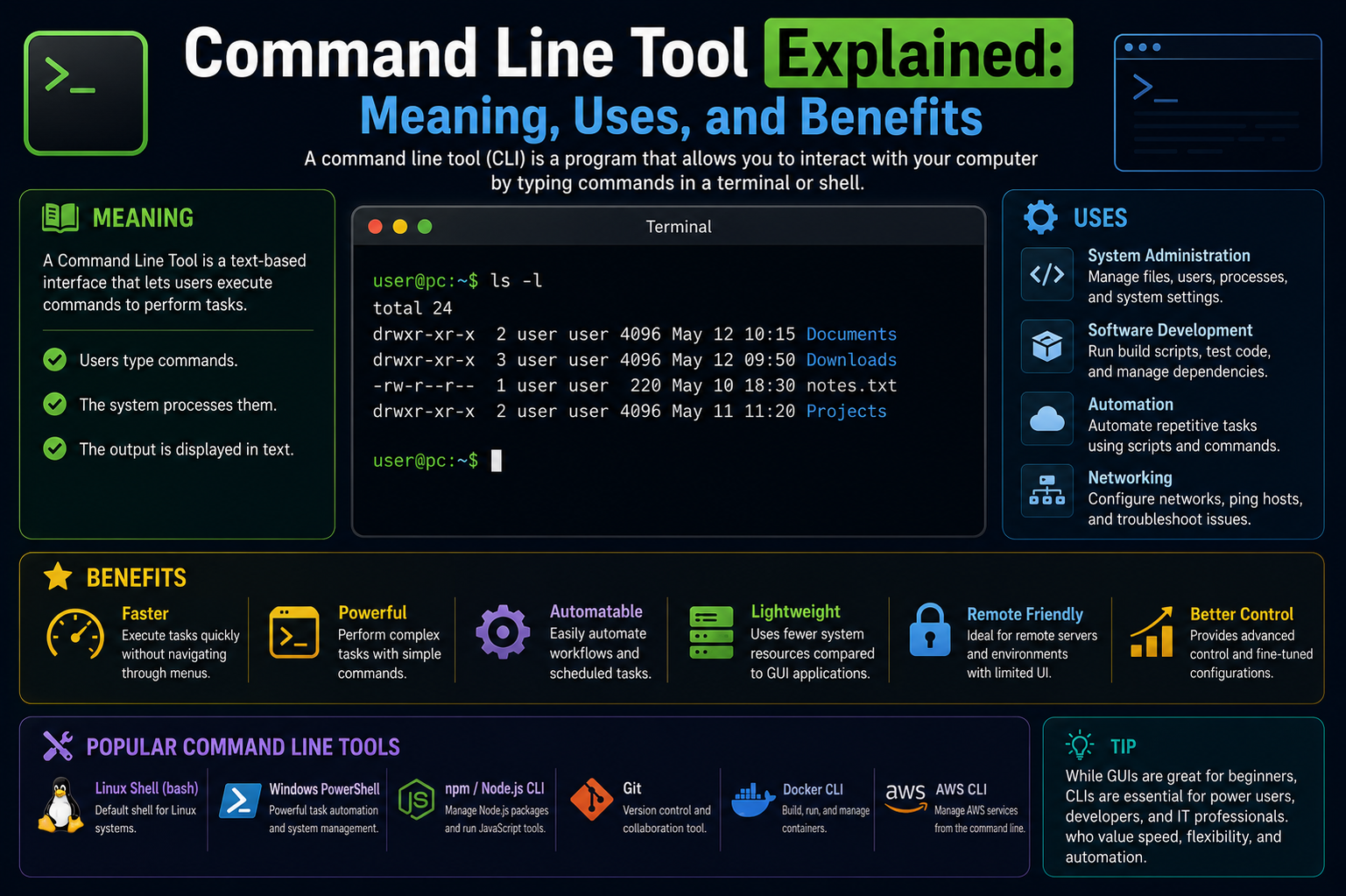
A command line tool is a text-based software utility that allows users to interact directly with a computer system by typing instructions instead of clicking through graphical menus. Instead of using icons, buttons, or windows, everything is controlled through written commands entered into a terminal or command prompt. Once a command is typed and executed, the system processes it and returns a response in text form. This method provides a highly direct and efficient way of working with computers, especially for technical tasks such as system management, file handling, and automation.
Command line tools may look simple on the surface, but they are extremely powerful. They are widely used in professional environments because they allow users to perform complex operations quickly and consistently. Unlike graphical interfaces, which often require multiple steps and mouse interactions, command line tools can execute tasks with a single command. This makes them especially useful when working with large systems, remote servers, or repetitive operations.
Why Command Line Tools Are Still Important
Even though modern applications often rely on graphical interfaces, command line tools remain essential in IT, software development, and network administration. One of the main reasons is speed. Experienced users can complete tasks much faster by typing commands than by navigating through menus.
Another important reason is automation. Command line tools can be combined into scripts that perform multiple tasks automatically. This is extremely useful when managing large environments, such as server farms or enterprise systems, where manual work would be too slow and error-prone.
They are also widely used in remote environments. Many servers do not have graphical interfaces installed, so command line access becomes the only way to manage them. This makes command line skills critical for system administrators and DevOps professionals.
What a Command Line Interface Really Is
A command line interface is the environment where users interact with the system through text commands. It acts as a bridge between the user and the operating system. When a command is entered, the interface interprets it and sends it to the system for execution.
Different operating systems provide different command line environments. Windows systems typically use Command Prompt and PowerShell. Command Prompt is simpler and based on older system structures, while PowerShell is more advanced and supports complex automation features.
Mac and Linux systems use terminal applications that run shells such as bash or zsh. These shells are designed for powerful scripting and system control. Although each system has a different style, the core idea remains the same: users communicate with the computer through text-based instructions.
Basic Building Blocks of Command Line Usage
To use command line tools effectively, it is important to understand a few key concepts. The shell is the program that processes commands typed by the user. It interprets the text and tells the system what action to perform.
Commands are the instructions given to the system. They are often followed by arguments, which provide additional information. For example, in a command that checks network connectivity, the main command performs the action, while the argument specifies the target.
Flags are another important concept. They modify how a command behaves. Depending on the system, flags may appear with dashes or slashes. They allow users to customize the output or behavior of a command without writing a new instruction from scratch.
The working directory is the current location in the file system where commands are executed. Understanding this is important because many commands operate relative to this location. If the wrong directory is active, commands may affect the wrong files or folders.
Navigating Through the System Using Commands
Navigation is one of the first skills learned in command line usage. It allows users to move through folders, view files, and understand the system structure.
To find the current directory, different systems use different commands. Some display the location directly, while others require a specific instruction to show it. Changing directories is done using a standard command across most systems, followed by the target folder path.
Listing files is another common task. Windows systems use one type of command, while Unix-based systems use another. Although the syntax is different, the purpose remains the same: displaying the contents of a folder.
The key difference between operating systems is how they structure file systems. Windows uses separate drives, while Linux and Mac systems use a unified structure where everything is part of a single tree.
Advanced Uses of Command Line Tools
Once basic navigation is understood, command line tools can be used for much more advanced tasks. One of the most important features is scripting. Scripting allows users to combine multiple commands into a single file that runs automatically.
On Windows systems, scripting is often done using batch files or PowerShell scripts. Batch files are simpler and older, while PowerShell scripts are more powerful and support advanced system automation.
On Linux and Mac systems, shell scripts are commonly used. These scripts often begin with a special instruction that tells the system which interpreter to use. Scripts must also have the correct permissions to be executed.
Scripting is especially useful for repetitive tasks such as file backups, system updates, or log processing. Instead of manually repeating steps, a script can complete the entire process automatically.
Customizing the Command Line Environment
Command line environments can be customized to improve productivity. Users can create shortcuts, change settings, and modify how the system behaves.
On Windows PowerShell, profiles can be edited to customize startup behavior. Environment variables can also be set to store reusable values for scripts and applications.
On Unix-based systems, configuration files such as shell profiles are used to customize the environment. These files allow users to create aliases, which are shortcuts for longer commands. For example, a frequently used long command can be replaced with a short keyword.
Another important customization is modifying the system path. This allows the system to recognize commands from different locations without needing to specify full file paths.
Customization helps improve efficiency and reduces repetitive typing, especially for users who work in the command line daily.
Remote Access and System Control
One of the most powerful features of command line tools is remote access. Using secure connection methods, users can control other computers over a network.
Secure shell connections are commonly used for this purpose. They allow users to log into remote systems and execute commands as if they were physically present. This is widely used in server management and cloud computing environments.
Key-based authentication is often used to improve security. Instead of entering a password every time, a secure key pair is used to verify identity. This makes remote access both safer and more convenient.
Command line tools also support automation in remote environments. Scripts can be executed on multiple machines, allowing administrators to manage large systems efficiently.
Version Control Through Command Line Tools
Version control systems are essential in software development, and they are commonly used through command line tools. These systems track changes in files and allow multiple users to collaborate on projects.
Basic operations include initializing a repository, adding files, and saving changes. More advanced operations include merging different versions of files and managing project history.
Command line usage is preferred for version control because it provides full control and flexibility. It also allows automation of development workflows, making it easier to manage large projects.
System Tools and Development Utilities
Some systems require additional tools to support development activities. These tools provide compilers, build utilities, and other essential components needed for software creation.
Once installed, these tools allow users to compile code, manage projects, and run development tasks directly from the command line. Without them, many programming and system operations would not function properly.
These utilities are often integrated with package managers, which help install and manage software dependencies efficiently.
Security Practices in Command Line Usage
Command line tools provide powerful access to the system, which also means they must be used carefully. Incorrect commands can lead to data loss or system damage.
Before executing unknown commands, it is important to verify their purpose. Many systems provide built-in tools to check what a command does before running it.
File permissions are also an important part of security. Different systems use different models to control access. Some systems use detailed permission settings, while others use simpler user-based models.
Understanding permissions helps prevent unauthorized access and ensures that only the correct users can modify or execute files.
Backup and Recovery Using Command Line Tools
Command line tools are widely used for backup and recovery tasks. They allow users to copy, synchronize, and restore data efficiently.
Some tools support incremental backups, which only copy changed files instead of everything. This saves time and storage space. Other tools are used to verify file system integrity and repair disk issues.
Automation is often used in backup processes. Scripts can be scheduled to run at specific times, ensuring that important data is always protected without manual intervention.
Working Safely and Building Confidence
Learning command line tools requires practice and careful experimentation. It is important to start with basic commands and gradually move toward more advanced tasks. Working in safe environments such as test systems or virtual setups helps reduce the risk of accidental damage.
As experience grows, command line tools become more intuitive and efficient. They provide a level of control and flexibility that is difficult to achieve with graphical interfaces alone.
The most important skill is understanding how commands interact with the system. Once this foundation is strong, everything from automation to system management becomes much easier to handle.
Conclusion
Command line tools remain one of the most powerful and reliable ways to interact with computer systems, even in a world filled with advanced graphical interfaces. They provide direct access to the operating system, allowing users to execute tasks with precision, speed, and flexibility. Whether it is navigating files, managing system processes, configuring environments, or automating repetitive tasks, the command line offers a level of control that is difficult to match with traditional interfaces.
One of the most important takeaways is that command line tools are not limited to experts alone. While they may appear complex at first, they become highly intuitive with practice. Once the basic concepts such as commands, arguments, directories, and flags are understood, users can gradually move toward more advanced skills like scripting, remote access, and system automation. Each new concept builds on the previous one, creating a strong foundation for technical growth.
Another key point is the difference between operating systems. Windows, Mac, and Linux all provide command line environments, but each has its own structure and behavior. Understanding these differences helps users work more effectively across platforms and avoid common mistakes.
In practical use, command line skills significantly improve productivity, especially in IT, development, and system administration roles. Tasks that would normally take several minutes through a graphical interface can often be completed in seconds using the terminal.
Ultimately, learning command line tools is an investment in long-term technical capability. It builds confidence, enhances problem-solving skills, and opens the door to automation and advanced system control, making it an essential skill in modern computing environments.